What this class covered
- The three kinds of dropdown: native select, custom, and advanced
- Native select: selectOption() by label, value or index
- Custom dropdowns: open the trigger, then pick by role or by text
- getByText's partial match, exact: true, and the strict mode error
- Advanced dropdowns: searchable, multi-select chips, creatable, and async
- Keeping a menu open while you inspect it in DevTools
- Frames versus iframes: the legacy frameset and the modern iframe
- frameLocator(): filling a form inside one iframe
- A frameset page: listing its frames, then working in one
- Nested iframes three levels deep, and the strict mode failure
- Keyboard and mouse actions, in brief
- Two tasks: the QA Profile form and the selector battle
Three kinds of dropdown
The class sorted dropdowns into three groups, because each needs a different approach:
- Native. A real
<select>element with<option>children. The browser owns it, and Playwright sets it in one call. - Custom. Divs styled to look like a dropdown. Clicking a trigger opens a menu, and each item is a div with
role="option". - Advanced. Custom menus with extra behaviour: searchable, multi-select with chips, creatable, grouped, and async, where the options are fetched after you type.
selectOption() only works on the first kind. Everything else follows the class's two-step formula: open the dropdown, then select by role or text.
Native select: selectOption()
The first spec uses a plain <select id="dropdown"> with two options:
import { test, expect, Locator } from '@playwright/test';

test('Verify DropDowns', async ({ page }) => {
   await page.goto("https://the-internet.herokuapp.com/dropdown");

   await page.locator("#dropdown").click();
   await page.selectOption("#dropdown", "Option 2");

   await page.pause();
});
There is no Select class to import, as there is in Selenium. selectOption() takes the option's visible label, its value attribute, or its index, and one parameter accepts all of these shapes:
const dropdown = page.locator('#dropdown');

await dropdown.selectOption('Option 2');            // a string matches the value or the label
await dropdown.selectOption({ label: 'Option 1' }); // the visible text
await dropdown.selectOption({ value: '2' });        // the value attribute
await dropdown.selectOption({ index: 1 });          // the position, counting from 0
Each call returns the values it selected: ['2'], ['1'], ['2'] and ['1']. Index 1 is Option 1, not Option 2, because index 0 is the disabled "Please select an option" placeholder.
Two small differences from the pushed code. The click() before selectOption() is not needed: selectOption() picks the option and fires the change event itself. And the class described the call as locator.selectOption(), while the pushed code uses the page-level page.selectOption(selector, value). Both work. Playwright's own docs point you to the locator form, which is how the rest of this page is written.
Custom dropdowns: open, then pick
The second spec drives two custom dropdowns on the dropdowns practice page. Neither is a <select>, so selectOption() would throw. Each takes two clicks: one to open the menu, one to pick the option.
import { test, expect, Locator } from '@playwright/test';

test('Verify Custom DropDowns', async ({ page }) => {
   await page.goto('https://app.thetestingacademy.com/playwright/tables/dropdowns');

   await page.getByTestId('lang-trigger').click();
   await page.getByRole("option", { name:"JavaScript" }).click();

   // await page.getByText("JavaScript").first().click();

   await page.getByTestId('experience-trigger').click();
   await page.getByText("Mid-level (4-6 years)", { exact: true }).click();


   await page.pause();
});
- Open it. The trigger carries
data-testid="lang-trigger", which is exactly whatgetByTestId()reads. - Pick by role. The menu items are plain divs, but each has
role="option", sogetByRole('option', { name: 'JavaScript' })finds the right one. If the items had no role, a class selector throughpage.locator()would do the same job. - Or pick by text.
getByText()also works once the menu is open, with one catch.
Why the getByText line needs first(). With the menu open, getByText('JavaScript') matches two elements. Locators are strict: an action on a locator that matches more than one element throws a strict mode violation instead of guessing. .first(), .last() or .nth(i) picks one. getByRole('option', ...) avoids the problem, because only one element on the page is an option named JavaScript.
exact: true. getByText() does a partial, case-insensitive match by default, so a short string also matches any longer text that contains it. { exact: true } demands the whole string, case included. The option is optional, which is what the question mark in its type, exact?: boolean, means.
Advanced dropdowns: searchable, multi-select, creatable and async
The third spec works through the react-select style menus on the select-boxes practice page. The comments are as pushed, with their dashes shown as colons.
import { test, expect, Locator } from '@playwright/test';

test('Verify Advance Custom DropDowns', async ({ page }) => {
   await page.goto('https://app.thetestingacademy.com/playwright/tables/select-boxes');

       // ① Single: searchable

   await page.locator('#rs-single').click();
   await page.getByText("Cypress").click()

     // ②  Multi: chips with remove
   await page.locator("#rs-multi").click();
   await page.getByText("Pytest", { exact: true }).click();
   await page.getByText("JUnit", { exact: true }).click();
   await page.keyboard.press("Escape");


    // ③ Creatable multi: type and Enter
    await page.locator("#rs-creatable").click();
    await page.getByText("api-testing", { exact: true }).click();
    await page.getByText("security", { exact: true }).click();
    await page.keyboard.press("Escape");


    // ⑤ Async: fetched on type


    await page.locator("#rs-async").click();
    await page.getByTestId('rs-async-input').fill('de');
    await expect(page.getByTestId('rs-async-menu')).toContainText('Delhi');
    await page.getByRole('option',{ name: "Delhi", exact :true},).click();

   await page.pause();
});
| Menu | What the spec does | Why |
|---|---|---|
| Searchable | clicks #rs-single, then getByText('Cypress') |
Cypress appears once on the page, so exact is not needed |
| Multi-select | picks Pytest and JUnit, then presses Escape | the menu stays open after each pick; Escape, or a click outside, closes it |
| Creatable | the same pattern with api-testing and security | two picks, then Escape |
| Async | opens the menu, types de, asserts, then picks |
the options only exist once the search results arrive |
The async menu is the one the class flagged as an interview favourite. Step by step:
| Step | Code | What happens |
|---|---|---|
| 1 | locator('#rs-async').click() |
opens the menu |
| 2 | getByTestId('rs-async-input').fill('de') |
types into its search box; results arrive after a short delay |
| 3 | expect(getByTestId('rs-async-menu')).toContainText('Delhi') |
retries until the results are in: Hyderabad and Delhi |
| 4 | getByRole('option', { name: 'Delhi', exact: true }).click() |
picks Delhi |
Typing de returns two cities, because both names contain those letters. That is why the pick names its option exactly.
What the assertion adds. The class puts expect(...).toContainText('Delhi') before the click to be sure the suggestion has actually rendered. The click would wait on its own, because every Playwright action auto-waits for its element. The assertion earns its place another way: it checks that the menu shows the result you expect before you act on it, and when the search returns nothing, the failure names the missing text instead of reporting a click timeout.
Questions from the class:
- Do I need a loop to find the option? No. In Selenium you would collect the options and loop until the text matches.
getByRole('option', { name })goes straight to it. Looping over a list of values you want to pick, to avoid repeating the same line, is fine. - What if an option's text has extra spaces? The class suggested falling back to
page.locator()withnormalize-space(). That function belongs to XPath, not CSS, and you rarely need it:getByText()and thenameoption ofgetByRole()already trim and collapse whitespace, even withexact: true. - How do I remove a chip? Each chip's close button has the accessible name "Remove api-testing", so
page.getByRole('button', { name: 'Remove api-testing' })orpage.getByLabel('Remove api-testing')finds it, and a click removes the chip. - Can page.close() close the menu? No.
page.close()closes the whole page, the browser tab the test is running in. Use Escape or a click outside. - Toast messages that vanish after two or three seconds are handled the same way, and come in a later class.
Keeping a menu open while you inspect it. Some suggestion lists close the moment the mouse leaves them, so they disappear before you can inspect them. In Chrome DevTools, select the element, open the Event Listeners tab, and remove the listeners for mouse events (mouseover, mouseout, mousemove and the like) and for blur. With those gone, the menu stays open while you work out its locators.
Frames versus iframes
An iframe embeds a whole separate HTML document inside the page. It is the modern way to do it, and nearly every site you meet uses iframes: payment forms, embedded editors and third-party widgets are the usual cases. A frameset is the older way. Before HTML5, a page could be split into frames, such as a side menu, a main area and a footer, each holding its own document. HTML5 dropped <frameset>, but browsers still render it and Playwright handles both.
Either way the elements live in a different document, so page.locator() cannot see them. There is no switching step, as there is with driver.switchTo().frame() in Selenium: you get a frame locator, then use it wherever you would have used page.
One iframe: the vehicle registration form
The frames practice page embeds a vehicle registration form in an iframe with the id frame-one. Every line after the first uses the frame locator where it would otherwise use page:
import { test, expect, Locator, FrameLocator } from '@playwright/test';

test('Verify Advance Custom DropDowns', async ({ page }) => {
  await page.goto('https://app.thetestingacademy.com/playwright/frames/');
  let vechileFrame: FrameLocator = await page.frameLocator("#frame-one");

  await vechileFrame.locator('#RESULT_TextField-1').fill('Hyundai i10');
  await vechileFrame.locator('#RESULT_TextField-2').fill('Pramod Dutta');
  await vechileFrame.locator('#RESULT_TextField-3').fill('2012');
  await vechileFrame.locator('#RESULT_RadioButton-1').selectOption('Hatchback');

  await vechileFrame.locator('#RESULT_TextField-4').fill('2015');

  await vechileFrame.locator('#RESULT_TextArea-1').fill('Amazing car with amazing family car in a budget');

  await vechileFrame.getByText('Submit registration', { exact: true }).click();

  let output = await vechileFrame.locator("#vehicle-output").innerText();
  console.log(output);
  await page.pause();
});
After the submit, the form's output panel shows what was entered, and the spec prints it:
{
  "vehicleName": "Hyundai i10",
  "ownerName": "Pramod Dutta",
  "regNumber": "2012",
  "vehicleType": "Hatchback",
  "year": "2015",
  "notes": "Amazing car with amazing family car in a budget"
}
Note the selectOption() call: the vehicle type field is a native <select>, so the first half of the class applies inside the frame too.
The await on frameLocator() does nothing. page.frameLocator() returns a FrameLocator straight away. It is not a promise, so the await is harmless but misleading. Like any locator it is lazy: nothing is looked up until you act on it, and then it waits for the frame. Drop the await. This spec, like the two after it, also kept the dropdown spec's test title, "Verify Advance Custom DropDowns", so rename them to make the report say what ran.
When the iframe has no id. The class's order of preference is id, then name, then src, then title, with the index as the last resort. The vehicle iframe carries all four attributes, so each of these reaches the same frame:
page.frameLocator('#frame-one');                                            // id
page.frameLocator('iframe[name="vehicle-form"]');                           // name
page.frameLocator('iframe[src="./registration-form.html"]');                // src
page.frameLocator('iframe[title="Vehicle registration form (frame one)"]'); // title
page.locator('iframe').nth(0).contentFrame();                               // index, from 0
The last line is the current way to pick a frame by position. page.frameLocator('iframe').nth(0) still runs, but it is deprecated in favour of locator().nth() followed by contentFrame().
A frameset: list the frames, then work in one
The multi-frames practice page is a frameset with three frames. The fourth spec reads the main frame's heading, lists every frame, then clicks a link in the side frame:
import { test, expect, Locator, FrameLocator } from '@playwright/test';

test('Verify Advance Custom DropDowns', async ({ page }) => {
  await page.goto('https://app.thetestingacademy.com/playwright/frames/multi-frames');

  let mainFrame: FrameLocator = await page.frameLocator('[name="main"]');
  const headerText = await mainFrame.locator('h2').innerText();
  console.log(headerText);


    const allFrames: Locator[] = await page.locator('//frame').all();
    console.log('total number of frames: ' + allFrames.length);

     for (const frame of allFrames) {
        console.log(await frame.getAttribute('name'), ': ', await frame.getAttribute('src'));

    }


    let sideFrame: FrameLocator = await page.frameLocator('[name="side"]');
    await sideFrame.getByTestId('side-link-registration').click();


  await page.pause();
});
It prints the heading (whose dash is shown here as a hyphen), then the three frames:
Main frame - practice playground
total number of frames: 3
side :  ./side-frame.html
main :  ./main-frame.html
footer :  ./footer-frame.html
- Frames on a frameset have names, so
[name="main"]reaches the main frame, andh2inside it is its heading. - When you do not know the names,
page.locator('//frame').all()returns one locator per<frame>element, and thefor...ofloop prints each one'snameandsrc. - Then any frame is one call away.
sideFrame.getByTestId('side-link-registration')clicks the link in the side menu.
That link loads the vehicle registration form into the main frame: a link in one frame changing the document in another is how frameset menus work. In class this was described as an iframe inside the side frame, to be reached by chaining once more. Running it shows no extra iframe, so the form is one frame locator away, through the main frame:
const main = page.frameLocator('[name="main"]');
await main.locator('#RESULT_TextField-1').fill('Hyundai i10');
Nested iframes, three levels deep
The last example came from an interview a student sat: three iframes, each inside the last, each holding one text field. The page is an outside practice site, so it is not linked here. The full spec, URL included, is in the batch repo as 248_Nested_Iframe_TestCase.spec.ts. From after the page.goto() line:
  let frame1: FrameLocator = page.frameLocator('#pact1');
  let frame2: FrameLocator = frame1.frameLocator('#pact2');
  let frame3: FrameLocator = frame2.frameLocator('#pact3');

  await frame1.locator('#inp_val').fill('Aishwarya Rai');
  await frame2.locator('#jex').fill('Wife');
  await frame3.locator('#glaf').fill('Playwright');

  const headerText = await frame1.locator('h3').innerText();
  console.log(headerText);
  await page.waitForTimeout(5000);
  page.keyboard
The chain is the whole idea: find frame one from the page, frame two from frame one, and frame three from frame two. #jex and #glaf are simply the ids that page's developers chose.
It fails as pushed. Run it, and the first fill() throws:
Error: locator.fill: Error: strict mode violation: locator('#pact1') resolved to 2 elements
The page has two iframes with the id pact1. Ids are supposed to be unique, but nothing enforces it, and a frame locator is as strict as any other locator. The class named the fix: pick one with first(). For frames, current Playwright writes that as locator().first() followed by contentFrame():
const frame1: FrameLocator = page.locator('#pact1').first().contentFrame();
const frame2: FrameLocator = frame1.frameLocator('#pact2');
const frame3: FrameLocator = frame2.frameLocator('#pact3');
With that change all three fields fill, and the spec prints the heading inside frame one:
Dare For You
page.frameLocator('#pact1').first() also runs, but it is deprecated. Two leftovers in the pushed file are worth knowing about. page.keyboard on a line of its own does nothing: it names the keyboard object without calling anything, and was the start of the next topic. And waitForTimeout(5000) is a fixed five-second pause for watching the result, not something to keep in a real test.
Cheat sheet: frames, iframes and windows
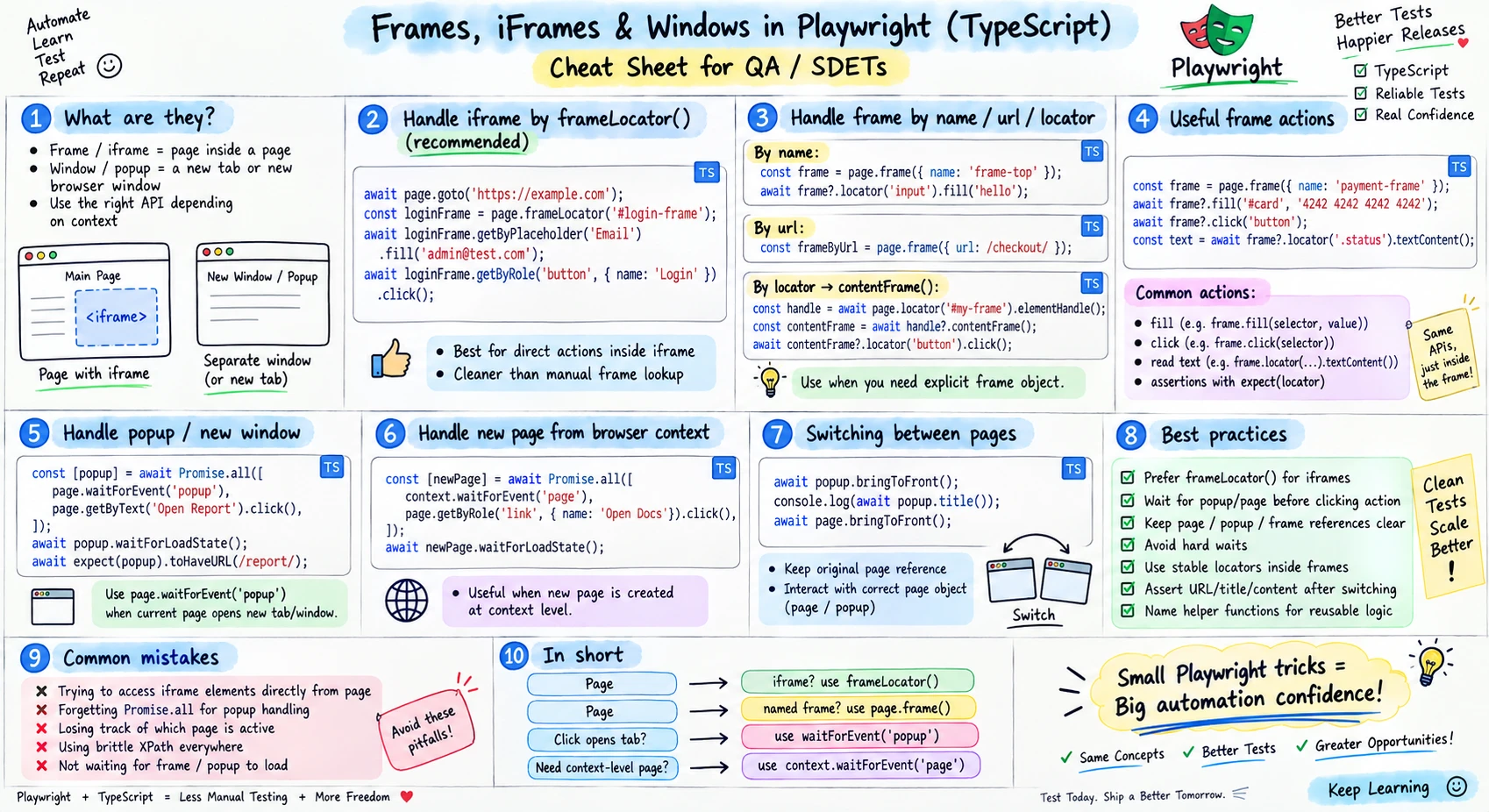
The frame panels, 1 to 4, cover this class. The popup and new-tab panels, 5 to 7, are ahead of it: pop-ups come in an upcoming class. The sheet also uses page.frame(), which returns a Frame object, or null when nothing matches, which is why its examples call frame?.locator() with optional chaining. The class used frameLocator() throughout, and the sheet marks it as the recommended way.
Keyboard and mouse, in brief
The class closed with a quick tour of page.keyboard, an interface that hangs off the page (hover over it in VS Code to see its methods). Worked examples come in later classes.
| Call | What it does |
|---|---|
page.keyboard.type('Hello World') |
types the text one key at a time |
page.keyboard.press('Escape') |
presses one key, as the multi-select above did |
page.keyboard.press('Shift+K') |
presses a key combination |
page.keyboard.press('ArrowLeft') |
presses an arrow or other named key |
page.keyboard.down('Shift') |
holds a key down until up() releases it |
Mouse-style actions live on the locator: hover(), dblclick(), click(), dragTo() and scrollIntoViewIfNeeded(), with page.mouse.wheel() for scrolling and page.mouse.down() for pressing a button.
Tasks and announcements
- Code: all six specs are in the batch repo, in
tests/08_Web_Select_Frames_Iframeandtests/09_Frame_Iframe. - Coming tomorrow: a cricket scorecard problem for following-sibling and preceding-sibling XPath. Given a batter's name, find their runs, balls, fours and sixes, then find the top scorer across two innings. It has come up in interviews.
- The OrangeHRM task from the web tables class is still open, and a hint is coming.
- Still to come: pop-ups, toast messages, and a class of their own for assertions.
Task 1, the QA Profile form. On the QA Profile Form practice page, fill in the first and last name, pick a gender, choose 5 from Years of experience, fill in the date, and tick the three automation tools. The class's hint for the date: fill the field directly instead of clicking through the calendar. The task is in the class thread.
Task 2, the selector battle. Create a free account on QA Battle and work through its selector battle: about twenty multiple-choice questions on choosing the right selector, with hints and several attempts. The class's example: to select every failed test case row in its table, the answer was .fail. If an office laptop blocks the site, use another machine.