What this class covered
- What data-driven testing is: external data plus the application under test
- JSON: what it is, its seven syntax rules and six data types
- Four websites for reading JSON
- A JavaScript object is not JSON; JSON.parse and JSON.stringify
- Importing a JSON file straight into a spec
- The fs and path modules: reading and writing a JSON file
- The tsconfig change: resolveJsonModule and Node16
- Why convert at all: change a copy, never the file
- One test, many rows: a for loop over an array of logins
- CSV: rows, columns and cells, and a CSV reader written from scratch
- The same loop over a JSON file, and why JSON wins
- Ready-made readers for Excel, YAML and MySQL, with specs written by AI
- Faker, and the AI test-data agent still to come
- Ponytail: asking AI for less code, and what the trim removed
- Tasks: all four readers and every example up to 290 on GitHub
What data-driven testing is
The batch is in its endgame: data-driven testing today, then the page object model and fixtures, then building a framework and running it on Jenkins.
Data-driven testing is a way of testing where you have an external source of data and the application under test (the AUT), and you run the same test against the AUT many times, once for each piece of data. The class's example: a login page you want to try with the details of thousands of students. That data can sit in a JSON, CSV, Excel or YAML file, or a plain text file, which is avoided because it is hard to read.
Of those, JSON is the one to reach for with Playwright, which uses JavaScript and TypeScript and supports JSON natively. In the instructor's own work, more than 12,000 tests read their data from JSON, not CSV, because JSON is easier to read, lighter and simpler to use. CSV and Excel are supported, but nine times out of ten you will choose JSON.
JSON: syntax rules and data types
JSON stands for JavaScript Object Notation: a lightweight format for storing data as key-value pairs and moving it between applications.
{
  "name": "Pramod",
  "role": "QA Engineer",
  "experience": 15
}
JSON is everywhere in testing: APIs, configuration files, test data, Playwright and Selenium frameworks, and the traffic between frontend and backend. The rules, from the class notes:
- Keys must use double quotes.
- String values must use double quotes.
- A key and its value are separated by
:. - Multiple properties are separated by
,. - Objects use
{ }. - Arrays use
[ ]. - The last property must not have a comma.
JSON has six data types:
| Data type | Example |
|---|---|
| String | "Pramod" |
| Number | 15 |
| Boolean | true |
| Null | null |
| Object | { "city": "Bangalore" } |
| Array | ["JavaScript", "Playwright"] |
One object with all six:
{
  "name": "Pramod",
  "experience": 15,
  "isTrainer": true,
  "middleName": null,
  "skills": ["JavaScript", "Playwright", "Selenium"],
  "address": {
    "city": "Bangalore",
    "country": "India"
  }
}
To look at a big JSON file as a picture, paste it into JSON Crack or ToDiagram. To work out the path to a value, use JSONPath or JSON Path Finder. In a JSON path, $ stands for the whole document, so for the login file further down, $.validUser.email is the valid user's email. JSON paths get their own class later.
A JavaScript object is not JSON
This looks like JSON, and it is not:
const user = {
  username: "admin",
  password: "admin123"
};

console.log(user.username);
console.log(user.password);
It is a JavaScript object. The only visible difference is the keys: in JSON they must be in double quotes, in a JavaScript object they need not be. So remember the rule from the class notes: JS object != JSON. A JavaScript object can hold arrays, read by index (data.browsers[0] is "Chrome" in { browsers: ["Chrome", "Firefox", "Safari"] }), and so can JSON: an array of objects, which is very common in API testing, or an object inside an object.
Two built-in functions convert between them. JSON.parse turns a JSON string into a JavaScript object:
const jsonText = `{
  "name": "Pramod",
  "role": "QA Engineer"
}`;

const user = JSON.parse(jsonText);
console.log(user.name);
Pramod
JSON.stringify goes the other way:
const user = {
  name: "Pramod",
  role: "QA Engineer"
};

const jsonText = JSON.stringify(user);

console.log(jsonText);
{"name":"Pramod","role":"QA Engineer"}
Converting is how data travels, for example between a test and an API. And as the next sections show, it is what makes test data changeable.
Import a JSON file straight into a spec
The first practical: a JSON file with one user in it.
{
  "username": "admin",
  "password": "admin123"
}
Playwright can import it directly, with no library at all:
import { test, expect } from '@playwright/test';
import userData from './280_Users.json';

test('Verify DDT', async ({ page }) => {

    console.log(userData.username);
    console.log(userData.password);

});
Running 1 test using 1 worker

admin
admin123
  ✓  1 [chromium] › tests/19_Data_Driven_Testing/279_DDT.spec.ts:4:5 › Verify DDT (40ms)

  1 passed (316ms)
userData is not a built-in library. It is a variable holding the whole JSON object, and you can name it anything you like, pramod included; the name only tells the reader what is inside. From there, userData.username reads a value, key by key.
The same idea with a real page: a test-data folder holding login.json, with a valid and an invalid user. These are made-up details for the practice page.
{
  "validUser": {
    "email": "admin@example.com",
    "password": "Password123"
  },
  "invalidUser": {
    "email": "wrong@example.com",
    "password": "wrongpassword"
  }
}
import { test, expect } from "@playwright/test";
import loginData from './test-data/login.json';

test.describe("Login - data driven", () => {
    test.beforeEach(async ({ page }) => {
        await page.goto("https://app.thetestingacademy.com/playwright/multiple_element_filter");
    });

    test("login with valid user", async ({ page }) => {
        await page.locator("#email").fill(loginData.validUser.email);
        await page.locator("#password").fill(loginData.validUser.password);
        await page.getByTestId("login-button").click();
    });

    test("login with invalid user", async ({ page }) => {
    await page.locator("#email").fill(loginData.invalidUser.email);
    await page.locator("#password").fill(loginData.invalidUser.password);
    await page.getByTestId("login-button").click();


  });
});
Running 2 tests using 1 worker

  ✓  1 [chromium] › tests/19_Data_Driven_Testing/282_Login_DDT.spec.js:9:9 › Login - data driven › login with valid user (1.1s)
  ✓  2 [chromium] › tests/19_Data_Driven_Testing/282_Login_DDT.spec.js:15:9 › Login - data driven › login with invalid user (1.1s)

  2 passed (2.5s)
Both tests get their data straight from the import, the positive case and the negative one.
The tsconfig change. Importing a .json file from a TypeScript spec made the editor complain. The fix, found with AI's help, was in tsconfig.json: switch on resolveJsonModule, and move module resolution from Node 10 to Node16, TypeScript's setting for how Node 16 and later find modules. The lines that matter, from the repo's tsconfig.json:
"module": "Node16",
"moduleResolution": "Node16",
"resolveJsonModule": true,
The error was the editor's, not Playwright's. Playwright runs these JSON imports without any tsconfig: with tsconfig.json removed, 279 and 282 still pass. The setting is what stops VS Code underlining the import in red.
Reading and writing files: fs and path
Reading a file yourself needs two modules from Node.js: fs, the file system module, which reads and writes files, and path, which builds file paths. The class's file:
import fs from 'fs';
import path from 'path';

// Always build paths from __dirname. A bare './280_Users.json' resolves
// against the working directory, so it breaks when run from elsewhere.
const filePath = path.join(__dirname, '280_Users.json');
console.log('File path:', filePath);

const fileData = fs.readFileSync(filePath,'utf-8');
const userDataJSObject = JSON.parse(fileData);
console.log(userDataJSObject);

console.log(userDataJSObject.username);
console.log(userDataJSObject.password);

// Writing Data to a JSON File

const user = {
  name: "Pramod",
  role: "QA Trainer"
};

const jsonData = JSON.stringify(user);

fs.writeFileSync("output.json", jsonData);
console.log("JSON file created successfully");
File path: .../LearningPlaywrightFundamentals3x/tests/19_Data_Driven_Testing/280_Users.json
{ username: 'admin', password: 'admin123' }
admin
admin123
JSON file created successfully
(Run here with ts-node. The first line is a full path, and how it starts depends on where you cloned the repo.)
path.join(__dirname, '280_Users.json')builds the full path to the file next to this script, so the read works whichever folder you run it from.fs.readFileSync(filePath, 'utf-8')reads the file as text. UTF-8 is the standard encoding.JSON.parseturns that text into a JavaScript object, souserDataJSObject.usernameworks.JSON.stringifyplusfs.writeFileSyncgoes the other way and writes a new JSON file.
One thing to notice when you run it: the write uses a bare "output.json", so the file lands in whichever folder you ran the command from, the repo root in this case, which is exactly what the comment at the top warns about for reads. The repo's .gitignore already lists it.
If your data arrives as CSV, a converter such as csvjson.com turns it into JSON.
Why convert at all: change a copy, never the file
The question several people asked: if import works directly, why bother converting? The class's answer: you never modify the JSON file itself. It might hold 10,000 rows. When a test needs a different value, say a new invalid user created on the fly, you turn the JSON into a JavaScript object and change that object instead. That is also how dynamic data gets in: values from Faker can be dropped into the object, while the file stays as it is.
fs.writeFileSync. What differs is sharing: checked by running two tests against login.json in one worker.An imported JSON can be changed too. The class described a direct import as read-only. It is an ordinary object, and you can change it in memory, but it is loaded once and shared by every test in the worker: change the email in one test and the next test sees the new value. JSON.parse(fs.readFileSync(...)) gives you a fresh copy each time you call it, so the class's rule holds for a better reason: change a copy, never the file and never the shared import.
One test, many rows: a for loop
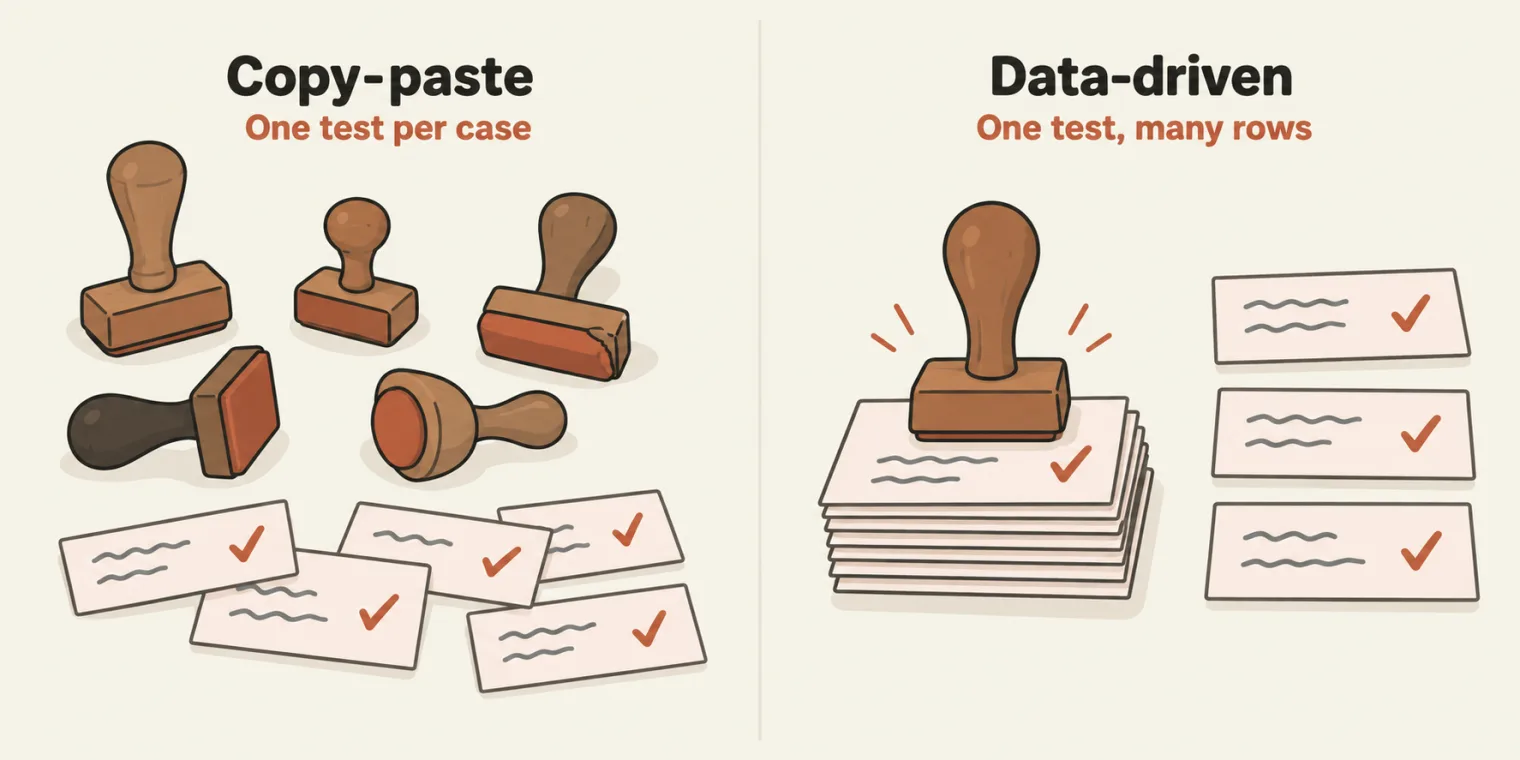
Now the real thing. The class put five logins in an array, each a row with a description, a username and a password, and wrapped one test in a for loop:
import { test, expect } from '@playwright/test';


test.describe('DDT Simple', () => {

test.beforeEach(async ({ page }) => {
    await page.goto("https://app.thetestingacademy.com/playwright/multiple_element_filter");
  });

// TEST DATA - array of objects
    const loginData = [
        {
            description: "valid credentials",
            username: "admin@gmail.com",
            password: "admin123",
            expectedURL: /admin/,
            shouldPass: true
        },
        {
            description: "invalid password",
            username: "admin123@ymail.com",
            password: "wrongpass",
            expectedURL: /admin/,
            shouldPass: false
        },
        {
            description: "empty username",
            username: "",
            password: "admin123",
            expectedURL: /admin123/,
            shouldPass: false
        },
        {
            description: "empty password",
            username: "pramod@ppp.com",
            password: "",
            expectedURL: /admin/,
            shouldPass: false
        },
        {
            description: "both empty",
            username: "",
            password: "",
            expectedURL: /multiple_element_filter/,
            shouldPass: false
        }
    ];

    for(const data of loginData){
        test(`Login with : ${data.description}`, async ({ page }) => {
            await page.locator("#email").fill(data.username);
            await page.locator("#password").fill(data.password);
            await page.getByTestId("login-button").click();
        });

    }


});
Running 5 tests using 1 worker

  ✓  1 [chromium] › tests/19_Data_Driven_Testing/284_DDT_JSON_ARRAY.spec.ts:50:13 › DDT Simple › Login with : valid credentials (1.3s)
  ✓  2 [chromium] › tests/19_Data_Driven_Testing/284_DDT_JSON_ARRAY.spec.ts:50:13 › DDT Simple › Login with : invalid password (1.2s)
  ✓  3 [chromium] › tests/19_Data_Driven_Testing/284_DDT_JSON_ARRAY.spec.ts:50:13 › DDT Simple › Login with : empty username (1.2s)
  ✓  4 [chromium] › tests/19_Data_Driven_Testing/284_DDT_JSON_ARRAY.spec.ts:50:13 › DDT Simple › Login with : empty password (1.0s)
  ✓  5 [chromium] › tests/19_Data_Driven_Testing/284_DDT_JSON_ARRAY.spec.ts:50:13 › DDT Simple › Login with : both empty (1.3s)

  5 passed (6.4s)
One test in the file, five in the run: valid credentials, invalid password, empty username, empty password and both empty. Each time round the loop, data is the next row, and the template literal gives each test its own title.
Five passes that check nothing. Each row carries expectedURL and shouldPass, but the test body never reads them, so a green run only proves the loop ran. The class left the checks for later. When you add them, know the page: this practice form signs in any password with a well-formed or empty email, and only an address with no @ is stopped, by the browser's own email check.
CSV: rows, columns, cells, and a reader from scratch
CSV is the older way. The class's file, in test-data:
description,username,password,shouldPass,expectedError
valid credentials,admin@gamil.com,admin123,true,
invalid password,admin@gamil.com,wrongpass,false,Invalid credentials
empty username,,admin123@gamil.com,false,Username is required
empty password,admin@gamil.com,,false,Password is required
locked account,locked_user@gamil.com,pass123,false,Account is locked
special chars,admin@gamil.com,p@$$w0rd!,true,
SQL injection,admin' OR '1'='1,password,false,Invalid credentials
Open it in a grid viewer and you see the parts: rows run across, columns run down, the first row is the header, and the value where a row meets a column is a cell.
Unlike JSON, JavaScript cannot import a CSV file, so you need a utility to read it, a reader function kept in a util folder. The class wrote readCSV:
import * as fs from 'fs';
import * as path from "path";

export interface TestDataRow {
    [key: string]: string;
}

export function readCSV(filePath: string): TestDataRow[] {
    let fullPath = path.resolve(filePath);
    let content = fs.readFileSync(fullPath, 'utf-8');
    let lines = content.trim().split("\n");

    // First Line is headers
    let headers = lines[0].split(",");
      // Remaining Lines are data
    let data: TestDataRow[] = [];
    for(let i=1;i< lines.length;i++){
        let values = lines[i].split(',');
        let row: TestDataRow = {};
        for (let j = 0; j < headers.length; j++) {
            row[headers[j].trim()] = values[j]?.trim() || "";
        }
         data.push(row);
    }
        return data;

}
It is the double for loop from the matrix and triangle-pattern programs: rows on the outside, columns on the inside.
util/csvReader.ts, the reader written in class, on the first data line of the CSV. Two loops, as in the matrix programs: rows on the outside, columns on the inside.| Step | Code | What you get |
|---|---|---|
| Resolve the path | path.resolve(filePath) |
The file's full path |
| Read | fs.readFileSync(fullPath, 'utf-8') |
The whole file as one string |
| Split into lines | content.trim().split("\n") |
One string per line: 8 lines |
| Headers | lines[0].split(",") |
description, username, password, shouldPass, expectedError |
| Each data line | lines[i].split(',') for i from 1 |
The values of one row |
| Each column | row[headers[j].trim()] = values[j]?.trim() || "" |
One key-value pair; an empty cell becomes "" |
| Result | data.push(row) |
7 row objects |
Hard to digest the first time, and that is fine. Nobody writes these from scratch any more: CSV readers are free on npm, and interviews rarely ask for one. If an interviewer does, write this one.
The spec uses the reader where 284 had an inline array:
import { test, expect } from '@playwright/test';
import { readCSV } from './util/csvReader';
import path from 'path';

test.describe('DDT CSV', () => {
    const loginData = readCSV(path.join(__dirname, '/test-data/login-data.csv'));

    for (const data of loginData) {

        test(`Login with : ${data.description}`, async ({ page }) => {
            await page.goto('https://app.thetestingacademy.com/playwright/multiple_element_filter');

            let textboxEmailAddress = page.getByRole("textbox", { name: "Email Address" });
            let textboxPassword = page.getByRole("textbox", { name: "Password" }).or(page.locator("#password")).or(page.locator("[name=\"password\"]"));
            let buttonLoginToPracticeAccount = page.getByRole("button", { name: "Login to Practice Account" }).or(page.getByTestId("login-button")).or(page.getByText("Login to Practice Account"));
            await textboxEmailAddress.fill(data.username);
            await textboxPassword.fill(data.password);
            await buttonLoginToPracticeAccount.click();

            await expect(page).toHaveURL(data.expectedURL);

        });

    }


});
In class, all seven tests ran, and all seven failed. That was expected: the point was whether each row's values reached the form, and running in debug mode showed them arriving one row at a time. Run it now and every test fails the same way:
Running 7 tests using 1 worker

  ✘  1 [chromium] › tests/19_Data_Driven_Testing/285_DDT_CSV.spec.ts:10:13 › DDT CSV › Login with : valid credentials (1.2s)
  ✘  2 [chromium] › tests/19_Data_Driven_Testing/285_DDT_CSV.spec.ts:10:13 › DDT CSV › Login with : invalid password (2.2s)
  ✘  3 [chromium] › tests/19_Data_Driven_Testing/285_DDT_CSV.spec.ts:10:13 › DDT CSV › Login with : empty username (1.3s)
  ✘  4 [chromium] › tests/19_Data_Driven_Testing/285_DDT_CSV.spec.ts:10:13 › DDT CSV › Login with : empty password (1.4s)
  ✘  5 [chromium] › tests/19_Data_Driven_Testing/285_DDT_CSV.spec.ts:10:13 › DDT CSV › Login with : locked account (1.3s)
  ✘  6 [chromium] › tests/19_Data_Driven_Testing/285_DDT_CSV.spec.ts:10:13 › DDT CSV › Login with : special chars (1.4s)
  ✘  7 [chromium] › tests/19_Data_Driven_Testing/285_DDT_CSV.spec.ts:10:13 › DDT CSV › Login with : SQL injection (1.1s)

  1) [chromium] › tests/19_Data_Driven_Testing/285_DDT_CSV.spec.ts:10:13 › DDT CSV › Login with : valid credentials

    Error: expect(page).toHaveURL(expected) failed

    Error: expected value must be a string or regular expression
    Expected has value: undefined

      18 |             await buttonLoginToPracticeAccount.click();
      19 |
    > 20 |             await expect(page).toHaveURL(data.expectedURL);
         |                                ^
      21 |
      22 |         });
      23 |
        at tests/19_Data_Driven_Testing/285_DDT_CSV.spec.ts:20:32

  ...

  7 failed
What the failures are really saying. The last line checks data.expectedURL, but the CSV has no expectedURL column, so every row hands toHaveURL the value undefined, and the assertion throws before any URL is compared. The failures say nothing about the login itself. The fix below checks what the class was after, that each row's values reached the form, and drops the check on a column that does not exist:
import { test, expect } from '@playwright/test';
import { readCSV } from './util/csvReader';
import path from 'path';

test.describe('DDT CSV', () => {
    const loginData = readCSV(path.join(__dirname, '/test-data/login-data.csv'));

    for (const data of loginData) {

        test(`Login with : ${data.description}`, async ({ page }) => {
            await page.goto('https://app.thetestingacademy.com/playwright/multiple_element_filter');

            let textboxEmailAddress = page.getByRole("textbox", { name: "Email Address" });
            let textboxPassword = page.getByRole("textbox", { name: "Password" }).or(page.locator("#password")).or(page.locator("[name=\"password\"]"));
            let buttonLoginToPracticeAccount = page.getByRole("button", { name: "Login to Practice Account" }).or(page.getByTestId("login-button")).or(page.getByText("Login to Practice Account"));
            await textboxEmailAddress.fill(data.username);
            await textboxPassword.fill(data.password);
            await expect(textboxEmailAddress).toHaveValue(data.username);
            await expect(textboxPassword).toHaveValue(data.password);
            await buttonLoginToPracticeAccount.click();

        });

    }


});
Running 7 tests using 1 worker

  ✓  1 [chromium] › tests/19_Data_Driven_Testing/285_DDT_CSV.spec.ts:10:13 › DDT CSV › Login with : valid credentials (1.1s)
  ✓  2 [chromium] › tests/19_Data_Driven_Testing/285_DDT_CSV.spec.ts:10:13 › DDT CSV › Login with : invalid password (1.3s)
  ✓  3 [chromium] › tests/19_Data_Driven_Testing/285_DDT_CSV.spec.ts:10:13 › DDT CSV › Login with : empty username (1.3s)
  ✓  4 [chromium] › tests/19_Data_Driven_Testing/285_DDT_CSV.spec.ts:10:13 › DDT CSV › Login with : empty password (1.3s)
  ✓  5 [chromium] › tests/19_Data_Driven_Testing/285_DDT_CSV.spec.ts:10:13 › DDT CSV › Login with : locked account (1.3s)
  ✓  6 [chromium] › tests/19_Data_Driven_Testing/285_DDT_CSV.spec.ts:10:13 › DDT CSV › Login with : special chars (1.1s)
  ✓  7 [chromium] › tests/19_Data_Driven_Testing/285_DDT_CSV.spec.ts:10:13 › DDT CSV › Login with : SQL injection (984ms)

  7 passed (8.8s)
Import order does not matter. At one point the VS Code run button did not appear, and moving import path from 'path' to the last line was taken as the fix. Whatever hid the button, the order was not it: the same spec with import path first runs exactly the same.
The same loop over a JSON file, and why JSON wins
Now the same thing with JSON: five registration rows in test-data/registration-data.json (the first two shown here):
[
    {
        "description": "valid registration",
        "name": "Dev Sharma",
        "username": "dev@test.com",
        "password": "Strong@123",
        "confirmPassword": "Strong@123",
        "shouldPass": true,
        "expectedError": "Email already exists"
    },
    {
        "description": "password mismatch",
        "name": "Alice",
        "username": "alice@test.com",
        "password": "Strong@123",
        "confirmPassword": "Different@456",
        "shouldPass": false,
        "expectedError": "Passwords do not match"
    },
  ...
]
import { test, expect } from '@playwright/test';
import path from 'path';
import loginData from "./test-data/registration-data.json";

test.describe('DDT JSON', () => {

    test.beforeEach(async ({ page }) => {
        await page.goto('https://app.thetestingacademy.com/playwright/multiple_element_filter');
    });

    test.afterEach(async ({ }, testInfo) => {
        console.log(`afterEach: ${testInfo.title} - status: ${testInfo.status}`);
    });

    for (const data of loginData) {

        test(`Login with : ${data.description}`, async ({ page }) => {

            const textboxEmailAddress = page.getByRole("textbox", { name: "Email Address" });
            const textboxPassword = page.getByRole("textbox", { name: "Password" })
                .or(page.locator("#password"))
                .or(page.locator("[name=\"password\"]"));
            const buttonLogin = page.getByRole("button", { name: "Login to Practice Account" })
                .or(page.getByTestId("login-button"))
                .or(page.getByText("Login to Practice Account"));

            await textboxEmailAddress.fill(data.username);
            await textboxPassword.fill(data.password);
            await buttonLogin.click();

            // if (data.shouldPass === "true") {
            //     await expect(page).not.toHaveURL(/multiple_element_filter/);
            // } else {
            //     await expect(page.getByText(data.expectedError)).toBeVisible();
            // }
        });

    }

});
Running 5 tests using 1 worker

afterEach: Login with : valid registration - status: passed
  ✓  1 [chromium] › tests/19_Data_Driven_Testing/286_JSON_DDT.spec.ts:17:13 › DDT JSON › Login with : valid registration (1.3s)
afterEach: Login with : password mismatch - status: passed
  ✓  2 [chromium] › tests/19_Data_Driven_Testing/286_JSON_DDT.spec.ts:17:13 › DDT JSON › Login with : password mismatch (1.2s)
afterEach: Login with : weak password - status: passed
  ✓  3 [chromium] › tests/19_Data_Driven_Testing/286_JSON_DDT.spec.ts:17:13 › DDT JSON › Login with : weak password (1.4s)
afterEach: Login with : duplicate email - status: passed
  ✓  4 [chromium] › tests/19_Data_Driven_Testing/286_JSON_DDT.spec.ts:17:13 › DDT JSON › Login with : duplicate email (1.3s)
afterEach: Login with : invalid email format - status: passed
  ✓  5 [chromium] › tests/19_Data_Driven_Testing/286_JSON_DDT.spec.ts:17:13 › DDT JSON › Login with : invalid email format (1.1s)

  5 passed (6.6s)
No reader to write: import the file, loop over it. That is the whole case for JSON. CSV needs a utility written first; JSON is supported natively, so it is import and a for loop. You can convert CSV to JSON, and you can ask your developers to share test data as JSON.
Excel, YAML and MySQL: the ready-made readers
For the other formats, the instructor brought readers he had already written, to share with the batch:
- dbReader.ts connects to MySQL, runs a query, and returns the rows as plain objects.
- excelReader.ts reads an
.xlsxfile with the ExcelJS library, for companies that insist on Excel. - yamlReader.ts reads YAML with the js-yaml library.
- generateExcel.js creates a fake Excel file, for reference.
Then, rather than coding the specs, he had AI write 287, 288 and 289 from them. Nobody writes these utilities from scratch now: across the 40-plus companies the instructor consults for, nobody is doing it.
The point he made: only the line that fetches the rows changes. Every reader returns JavaScript objects, and the rest of the test stays the same. The YAML reader is the simplest:
import * as fs from 'fs';
import * as path from 'path';
import * as yaml from 'js-yaml';

export interface LoginRow {
    description: string;
    username: string;
    password: string;
    shouldPass: boolean;
    expectedError: string;
}

/**
 * Reads a YAML file and returns it as a typed array.
 * Sync on purpose, so the data is ready at test-collection time
 * and we can create one test() per row.
 */
export function readYAML<T = LoginRow>(filePath: string): T[] {
    const fullPath = path.resolve(filePath);
    const content = fs.readFileSync(fullPath, 'utf-8');
    const data = yaml.load(content) as T[];

    if (!Array.isArray(data)) {
        throw new Error(`Expected a YAML list in ${fullPath}, got ${typeof data}`);
    }
    return data;
}
# Same seven rows as login-data.csv / login-data.xlsx / the MySQL seed.
# YAML is read synchronously, so these are available at test-collection time
# and each row becomes its own test(). See 288_DDT_YAML.spec.ts.

- description: valid credentials
  username: admin@gamil.com
  password: admin123
  shouldPass: true
  expectedError: ""
...
import { test, expect } from '@playwright/test';
import path from 'path';
import { readYAML, type LoginRow } from './util/yamlReader';

/**
 * Data-driven login, same page as 286, but the rows come from YAML.
 *
 * This is the closest match to 286. readYAML is synchronous, so the data is
 * available at test-collection time and each row becomes its own test(),
 * with its own entry in the report and its own retry.
 *
 * Compare with 287 (Excel) and 289 (MySQL), where the reader is async and the
 * rows have to be replayed as test.step()s inside one test instead.
 */
const YAML_PATH = path.join(__dirname, 'test-data', 'login-data.yaml');
const APP_URL = 'https://app.thetestingacademy.com/playwright/multiple_element_filter';

// Read at module load, before any test runs.
const loginData = readYAML<LoginRow>(YAML_PATH);

test.describe('DDT YAML', () => {

    test.beforeEach(async ({ page }) => {
        await page.goto(APP_URL);
    });

    test.afterEach(async ({ }, testInfo) => {
        console.log(`afterEach: ${testInfo.title} - status: ${testInfo.status}`);
    });

    for (const data of loginData) {

        test(`Login with : ${data.description}`, async ({ page }) => {

            const textboxEmailAddress = page.getByRole("textbox", { name: "Email Address" });
            const textboxPassword = page.getByRole("textbox", { name: "Password" })
                .or(page.locator("#password"))
                .or(page.locator("[name=\"password\"]"));
            const buttonLogin = page.getByRole("button", { name: "Login to Practice Account" })
                .or(page.getByTestId("login-button"))
                .or(page.getByText("Login to Practice Account"));

            await textboxEmailAddress.fill(data.username);
            await textboxPassword.fill(data.password);
            await buttonLogin.click();

            // YAML gives a real boolean, no "true"/"false" string parsing needed.
            expect(typeof data.shouldPass).toBe('boolean');
            console.log(`  ${data.description} -> shouldPass=${data.shouldPass}`);
        });

    }

});
Running 7 tests using 1 worker

  valid credentials -> shouldPass=true
afterEach: Login with : valid credentials - status: passed
  ✓  1 [chromium] › tests/19_Data_Driven_Testing/288_DDT_YAML.spec.ts:33:13 › DDT YAML › Login with : valid credentials (1.2s)
  invalid password -> shouldPass=false
afterEach: Login with : invalid password - status: passed
  ✓  2 [chromium] › tests/19_Data_Driven_Testing/288_DDT_YAML.spec.ts:33:13 › DDT YAML › Login with : invalid password (1.3s)
  empty username -> shouldPass=false
afterEach: Login with : empty username - status: passed
  ✓  3 [chromium] › tests/19_Data_Driven_Testing/288_DDT_YAML.spec.ts:33:13 › DDT YAML › Login with : empty username (1.1s)
  empty password -> shouldPass=false
afterEach: Login with : empty password - status: passed
  ✓  4 [chromium] › tests/19_Data_Driven_Testing/288_DDT_YAML.spec.ts:33:13 › DDT YAML › Login with : empty password (1.2s)
  locked account -> shouldPass=false
afterEach: Login with : locked account - status: passed
  ✓  5 [chromium] › tests/19_Data_Driven_Testing/288_DDT_YAML.spec.ts:33:13 › DDT YAML › Login with : locked account (1.3s)
  special chars -> shouldPass=true
afterEach: Login with : special chars - status: passed
  ✓  6 [chromium] › tests/19_Data_Driven_Testing/288_DDT_YAML.spec.ts:33:13 › DDT YAML › Login with : special chars (1.1s)
  SQL injection attempt -> shouldPass=false
afterEach: Login with : SQL injection attempt - status: passed
  ✓  7 [chromium] › tests/19_Data_Driven_Testing/288_DDT_YAML.spec.ts:33:13 › DDT YAML › Login with : SQL injection attempt (894ms)

  7 passed (8.4s)
readYAML is synchronous, so the rows exist while Playwright is still collecting tests, and each row becomes its own test(). Excel and MySQL are different, and the repo shows how:
test() per row. Specs 287 and 289 load in beforeAll and replay the rows as test.step().import { test, expect } from '@playwright/test';
import path from 'path';
import { readLoginDataFromExcel } from './util/excelReader';
import type { LoginRow } from './util/yamlReader';
/**
* Data-driven login, same page as 286, but the rows come from an .xlsx.
*
* Regenerate the spreadsheet with:
* node tests/19_Data_Driven_Testing/util/generateExcel.js
*
* WHY THIS LOOKS DIFFERENT FROM 286 AND 288
* -----------------------------------------
* exceljs is asynchronous, and Playwright collects tests *synchronously*.
* There is no way to `await` at module level and still produce one test()
* per row, so the rows are loaded in beforeAll and replayed as test.step()s
* inside a single test. Each step still shows up separately in the report.
*
* If you need one real test() per row from an async source, pre-generate a
* JSON file in globalSetup and import that synchronously instead.
*/
const XLSX_PATH = path.join(__dirname, 'test-data', 'login-data.xlsx');
const APP_URL = 'https://app.thetestingacademy.com/playwright/multiple_element_filter';
test.describe('DDT Excel', () => {
let rows: LoginRow[] = [];
test.beforeAll(async () => {
rows = await readLoginDataFromExcel(XLSX_PATH);
console.log(`Loaded ${rows.length} rows from ${path.basename(XLSX_PATH)}`);
});
test.afterEach(async ({ }, testInfo) => {
console.log(`afterEach: ${testInfo.title} - status: ${testInfo.status}`);
});
test('login with every row from the spreadsheet', async ({ page }) => {
expect(rows.length, 'no rows were read from the spreadsheet').toBeGreaterThan(0);
for (const data of rows) {
await test.step(`Login with : ${data.description}`, async () => {
await page.goto(APP_URL);
const textboxEmailAddress = page.getByRole("textbox", { name: "Email Address" });
const textboxPassword = page.getByRole("textbox", { name: "Password" })
.or(page.locator("#password"))
.or(page.locator("[name=\"password\"]"));
const buttonLogin = page.getByRole("button", { name: "Login to Practice Account" })
.or(page.getByTestId("login-button"))
.or(page.getByText("Login to Practice Account"));
await textboxEmailAddress.fill(data.username);
await textboxPassword.fill(data.password);
await buttonLogin.click();
console.log(` ${data.description} -> shouldPass=${data.shouldPass}`);
});
}
});
});
The Excel reader maps each spreadsheet row to the same LoginRow shape the YAML reader uses:
/** Same file, mapped to the shared LoginRow shape. */
export async function readLoginDataFromExcel(filePath: string): Promise<LoginRow[]> {
    const rows = await readExcel<Record<string, unknown>>(filePath, 'LoginData');

    return rows.map((r) => ({
        description: String(r.description ?? ''),
        username: String(r.username ?? ''),
        password: String(r.password ?? ''),
        // Excel gives a real boolean, but a "TRUE"/"true" string is also handled.
        shouldPass: r.shouldPass === true || String(r.shouldPass).toLowerCase() === 'true',
        expectedError: String(r.expectedError ?? ''),
    }));
}
Running 1 test using 1 worker

Loaded 7 rows from login-data.xlsx
  valid credentials -> shouldPass=true
     1.1 [chromium] › tests/19_Data_Driven_Testing/287_DDT_EXCEL.spec.ts:38:9 › DDT Excel › login with every row from the spreadsheet › Login with : valid credentials (1.3s)
  invalid password -> shouldPass=false
     1.2 [chromium] › tests/19_Data_Driven_Testing/287_DDT_EXCEL.spec.ts:38:9 › DDT Excel › login with every row from the spreadsheet › Login with : invalid password (340ms)
  empty username -> shouldPass=false
     1.3 [chromium] › tests/19_Data_Driven_Testing/287_DDT_EXCEL.spec.ts:38:9 › DDT Excel › login with every row from the spreadsheet › Login with : empty username (308ms)
  empty password -> shouldPass=false
     1.4 [chromium] › tests/19_Data_Driven_Testing/287_DDT_EXCEL.spec.ts:38:9 › DDT Excel › login with every row from the spreadsheet › Login with : empty password (294ms)
  locked account -> shouldPass=false
     1.5 [chromium] › tests/19_Data_Driven_Testing/287_DDT_EXCEL.spec.ts:38:9 › DDT Excel › login with every row from the spreadsheet › Login with : locked account (295ms)
  special chars -> shouldPass=true
     1.6 [chromium] › tests/19_Data_Driven_Testing/287_DDT_EXCEL.spec.ts:38:9 › DDT Excel › login with every row from the spreadsheet › Login with : special chars (304ms)
  SQL injection attempt -> shouldPass=false
     1.7 [chromium] › tests/19_Data_Driven_Testing/287_DDT_EXCEL.spec.ts:38:9 › DDT Excel › login with every row from the spreadsheet › Login with : SQL injection attempt (78ms)
afterEach: login with every row from the spreadsheet - status: passed
  ✓  1 [chromium] › tests/19_Data_Driven_Testing/287_DDT_EXCEL.spec.ts:38:9 › DDT Excel › login with every row from the spreadsheet (3.0s)

  1 passed (3.5s)
One test, seven steps.
MySQL. Before you run the MySQL spec, the database must exist. The repo ships a seed file that creates it with the same seven rows, plus one inactive row the reader filters out:
mysql -u root -p < tests/19_Data_Driven_Testing/test-data/seed.sql
Then set MYSQL_HOST and the other MYSQL_* values in .env, as listed in .env.example. The reader's query:
/** Reads login_data and maps snake_case columns to the shared LoginRow shape. */
export async function readLoginDataFromDB(): Promise<LoginRow[]> {
    const rows = await query<LoginDataRecord>(
        'SELECT description, username, password, should_pass, expected_error ' +
        'FROM login_data WHERE is_active = ? ORDER BY id',
        [1]
    );

    return rows.map((r) => ({
        description: r.description,
        username: r.username,
        password: r.password,
        shouldPass: r.should_pass === 1,
        expectedError: r.expected_error,
    }));
}
And the spec, after the Ponytail review described below:
import { test, expect } from '@playwright/test';
import { readLoginDataFromDB, isDbConfigured } from './util/dbReader';
import type { LoginRow } from './util/yamlReader';


test.describe('DDT MySQL', () => {

    test.skip(!isDbConfigured(), 'MYSQL_HOST is not set, see .env.example');

     let rows: LoginRow[] = [];

    test.beforeAll(async () => {
        rows = await readLoginDataFromDB();
    });

    test('login with every active row from the database', async ({ page }) => {
        expect(rows.length).toBeGreaterThan(0);

        for (const row of rows) {
            await test.step(`Login with : ${row.description}`, async () => {
                await page.goto('https://app.thetestingacademy.com/playwright/multiple_element_filter');
                await page.getByRole('textbox', { name: 'Email Address' }).fill(row.username);
                await page.getByRole('textbox', { name: 'Password' }).fill(row.password);
                await page.getByRole('button', { name: 'Login to Practice Account' }).click();
            });
        }
    });

});
Without a database configured, the suite skips instead of failing:
Running 1 test using 1 worker

  -  1 [chromium] › tests/19_Data_Driven_Testing/289_DDT_MYSQL.spec.ts:16:9 › DDT MySQL › login with every active row from the database

  1 skipped
Against a MySQL loaded with the seed file:
Running 1 test using 1 worker

     1.1 [chromium] › tests/19_Data_Driven_Testing/289_DDT_MYSQL.spec.ts:16:9 › DDT MySQL › login with every active row from the database › Login with : valid credentials (1.2s)
     1.2 [chromium] › tests/19_Data_Driven_Testing/289_DDT_MYSQL.spec.ts:16:9 › DDT MySQL › login with every active row from the database › Login with : invalid password (269ms)
     1.3 [chromium] › tests/19_Data_Driven_Testing/289_DDT_MYSQL.spec.ts:16:9 › DDT MySQL › login with every active row from the database › Login with : empty username (267ms)
     1.4 [chromium] › tests/19_Data_Driven_Testing/289_DDT_MYSQL.spec.ts:16:9 › DDT MySQL › login with every active row from the database › Login with : empty password (269ms)
     1.5 [chromium] › tests/19_Data_Driven_Testing/289_DDT_MYSQL.spec.ts:16:9 › DDT MySQL › login with every active row from the database › Login with : locked account (285ms)
     1.6 [chromium] › tests/19_Data_Driven_Testing/289_DDT_MYSQL.spec.ts:16:9 › DDT MySQL › login with every active row from the database › Login with : special chars (291ms)
     1.7 [chromium] › tests/19_Data_Driven_Testing/289_DDT_MYSQL.spec.ts:16:9 › DDT MySQL › login with every active row from the database › Login with : SQL injection attempt (77ms)
  ✓  1 [chromium] › tests/19_Data_Driven_Testing/289_DDT_MYSQL.spec.ts:16:9 › DDT MySQL › login with every active row from the database (2.7s)

  1 passed (3.1s)
To install everything this module uses, from the repo's README:
npm i -D exceljs js-yaml @types/js-yaml mysql2 @faker-js/faker@9
The @9 matters: Faker 10 is ESM-only, and this repo is CommonJS.
Which to use? The JSON array, most of the time. Some teams use CSV. Excel, YAML and MySQL are rarely used in automation; you have the readers for when a project insists. In the instructor's team, it is JSON only.
Faker
Faker is a very well-known library that makes fake data look real. abc is not a real name, and a made-up email looks made up. Faker gives you a full name, an email and a password that look real but are not. The class's spec, as pushed after its Ponytail review:
import { test, expect } from '@playwright/test';
import { faker } from '@faker-js/faker';


const users = faker.helpers.multiple(() => ({
    name: faker.person.fullName(),
    email: faker.internet.email().toLowerCase(),
    password: faker.internet.password({ length: 12 }),
}), { count: 5 });

test.describe('DDT Faker', () => {

    test.beforeEach(async ({ page }) => {
        await page.goto('https://app.thetestingacademy.com/playwright/multiple_element_filter');
    });

    for (const user of users) {

        test(`Login with : ${user.name}`, async ({ page }) => {
            const email = page.getByRole('textbox', { name: 'Email Address' });
            const password = page.getByRole('textbox', { name: 'Password' });

            await email.fill(user.email);
            await password.fill(user.password);
            await expect(email).toHaveValue(user.email);

            await page.getByRole('button', { name: 'Login to Practice Account' }).click();
        });

    }

});
Running 5 tests using 1 worker

  ✘  1 [chromium] › tests/19_Data_Driven_Testing/290_DDT_FAKER.spec.ts:19:13 › DDT Faker › Login with : Sabrina Dickinson DDS (0ms)
  ✘  2 [chromium] › tests/19_Data_Driven_Testing/290_DDT_FAKER.spec.ts:19:13 › DDT Faker › Login with : Donna Schaefer (0ms)
  ✘  3 [chromium] › tests/19_Data_Driven_Testing/290_DDT_FAKER.spec.ts:19:13 › DDT Faker › Login with : Eloise Gutmann (0ms)
  ✘  4 [chromium] › tests/19_Data_Driven_Testing/290_DDT_FAKER.spec.ts:19:13 › DDT Faker › Login with : Cesar Mraz (0ms)
  ✘  5 [chromium] › tests/19_Data_Driven_Testing/290_DDT_FAKER.spec.ts:19:13 › DDT Faker › Login with : Dr. Courtney Greenfelder (0ms)

  1) [chromium] › tests/19_Data_Driven_Testing/290_DDT_FAKER.spec.ts:19:13 › DDT Faker › Login with : Sabrina Dickinson DDS

    Test not found in the worker process. Make sure test title does not change.

  ...

  5 failed
Every test fails before it starts. The names are part of the test titles, and that is the problem:
The repo's README for this module documents exactly this: the seed must be fixed, or every test is reported as "Test not found in the worker process". The fix is one line, before the names are drawn:
import { test, expect } from '@playwright/test';
import { faker } from '@faker-js/faker';

faker.seed(123);


const users = faker.helpers.multiple(() => ({
    name: faker.person.fullName(),
    email: faker.internet.email().toLowerCase(),
    password: faker.internet.password({ length: 12 }),
}), { count: 5 });

test.describe('DDT Faker', () => {

    test.beforeEach(async ({ page }) => {
        await page.goto('https://app.thetestingacademy.com/playwright/multiple_element_filter');
    });

    for (const user of users) {

        test(`Login with : ${user.name}`, async ({ page }) => {
            const email = page.getByRole('textbox', { name: 'Email Address' });
            const password = page.getByRole('textbox', { name: 'Password' });

            await email.fill(user.email);
            await password.fill(user.password);
            await expect(email).toHaveValue(user.email);

            await page.getByRole('button', { name: 'Login to Practice Account' }).click();
        });

    }

});
Running 5 tests using 1 worker

  ✓  1 [chromium] › tests/19_Data_Driven_Testing/290_DDT_FAKER.spec.ts:21:13 › DDT Faker › Login with : Edmond Lubowitz (1.4s)
  ✓  2 [chromium] › tests/19_Data_Driven_Testing/290_DDT_FAKER.spec.ts:21:13 › DDT Faker › Login with : Maggie Kerluke (1.1s)
  ✓  3 [chromium] › tests/19_Data_Driven_Testing/290_DDT_FAKER.spec.ts:21:13 › DDT Faker › Login with : Mathew Muller (1.3s)
  ✓  4 [chromium] › tests/19_Data_Driven_Testing/290_DDT_FAKER.spec.ts:21:13 › DDT Faker › Login with : Miss Evelyn Purdy DDS (1.0s)
  ✓  5 [chromium] › tests/19_Data_Driven_Testing/290_DDT_FAKER.spec.ts:21:13 › DDT Faker › Login with : Willie Durgan (1.1s)

  5 passed (6.4s)
With the seed, Faker gives the same five names on every run. The README's version reads the seed from a FAKER_SEED variable, so you can run a different set of names and replay a failure exactly.
Faker will see little use in this batch, though. In the class after next, the instructor will show an AI agent that generates test data on the fly instead.
Ponytail: asking AI for less code
Ask AI to write code and it writes complex code: classes, helpers, method after method. People do not write code like that. Ponytail pushes the agent the other way, to the minimum code that does the job. The instructor's advice: if AI wrote it, a DB reader, a YAML or Excel reader, a Faker spec, run a Ponytail review. You can ask for one on any spec file. The prompt used in class:
can you do a ponytail review and make sure that the Faker JS file that we have created, which is 290, is the minimum one? Use the minimum code to implement this. Do not make the complex functions and everything.
It condensed 289 to the short spec above. On 290 the seed went too, the seeding part judged not required. As the Faker section shows, that was the one line the spec could not lose: the trimmed file fails every test. So keep the habit, and add one step to it: read what the trim removed, and run the tests after it.
Tasks and announcements
- Today's task: add data-driven testing to your repository: all four readers, for CSV, Excel, YAML and MySQL, and every example up to 290. Practise them and push them to GitHub. Meeti posts the task with a screenshot.
- Notes: the class notes on data-driven testing are shared: what it is, when to use it, inline arrays, generated test data, external files, TypeScript and best practices.
- Doubts go in the data-driven doubt thread on the SDET Club, not the Zoom chat, so they can be answered properly, with screenshots.
- Coming up: fixtures and the page object model, then the framework and Jenkins, and the AI agent that generates test data.
Task, data-driven testing. Implement the four readers and specs 279 to 290 yourself, then push them to your GitHub repository.