What this class covered
- if and else, and what makes them different from the ternary
- Nested if: a condition inside a condition
- Ternary or if/else: one line against several
- The else-if ladder: the grade calculator, and boundary values
- What goes inside the brackets: comparison, logical and NOT, and always
=== - The switch statement: case, break and default
- Eight switch questions: fall-through, default, an API status code, grouped cases, switch (true), duplicate cases and strict matching
- switch or if/else: which one when
- Four ways to read user input: prompt, readline, prompt-sync and fs
- Tasks: five coding exercises in JavaScript
if and else
From the class notes: the if/else statement is JavaScript's most basic decision-making tool. It runs a block of code when a condition is true, and optionally a different block when it is false. Some call it a statement, some a condition; both are right. It works like the ternary operator from the last class:
if (condition) {
  // runs if condition is true
} else if (anotherCondition) {
  // runs if anotherCondition is true
} else {
  // runs if ALL conditions are false
}
The Goa example again, now as an if, the first file of chapter 06:
let age = 16;
if(age > 18){
    console.log("Go Goa");
}else{
    console.log("No Goa");
}
No Goa
16 is not greater than 18, so the else block runs.
Case matters. JavaScript keywords are lower case: If and Let are not keywords, and code that uses them does not run at all (If (true) { ... } stops with SyntaxError: Unexpected token '{'). And always use the curly braces, even for a single line.
Nested if
Two conditions, one inside the other, as with the nested ternary: over 18, you can go to Goa; over 26 as well, you can also drink.
//
let age = 27
if (age > 18) {
    console.log("Goa Check!");
    if (age > 26) {
        console.log("Drink and Goa");
    } else {
        console.log("Only Goa, no Drink");
    }
}
else {
    console.log("No Goa");
}
Goa Check!
Drink and Goa
27 is greater than 18, so the outer block runs and prints "Goa Check!". Inside it, 27 is greater than 26 as well, so the inner if prints "Drink and Goa", and neither else runs. In VS Code, right-click and choose Format Document to tidy the indentation, which makes nesting much easier to read.
Ternary or if/else?
"Why use if/else when the ternary does the same thing?" Because the ternary is for one line. When each branch has several statements to run, you need if/else:
let age = 20;
let result = age > 21 ? "Drive": "No Able to DRIve";

if(age > 21){
    console.log("Drive");
    console.log("Drink");
    console.log("Go goa");
}else{
    console.log("No Able to DRIve");
}
No Able to DRIve
The ternary on line 2 picks one of two values. The if block runs three statements when the condition is true. One value: ternary. Several statements: if/else.
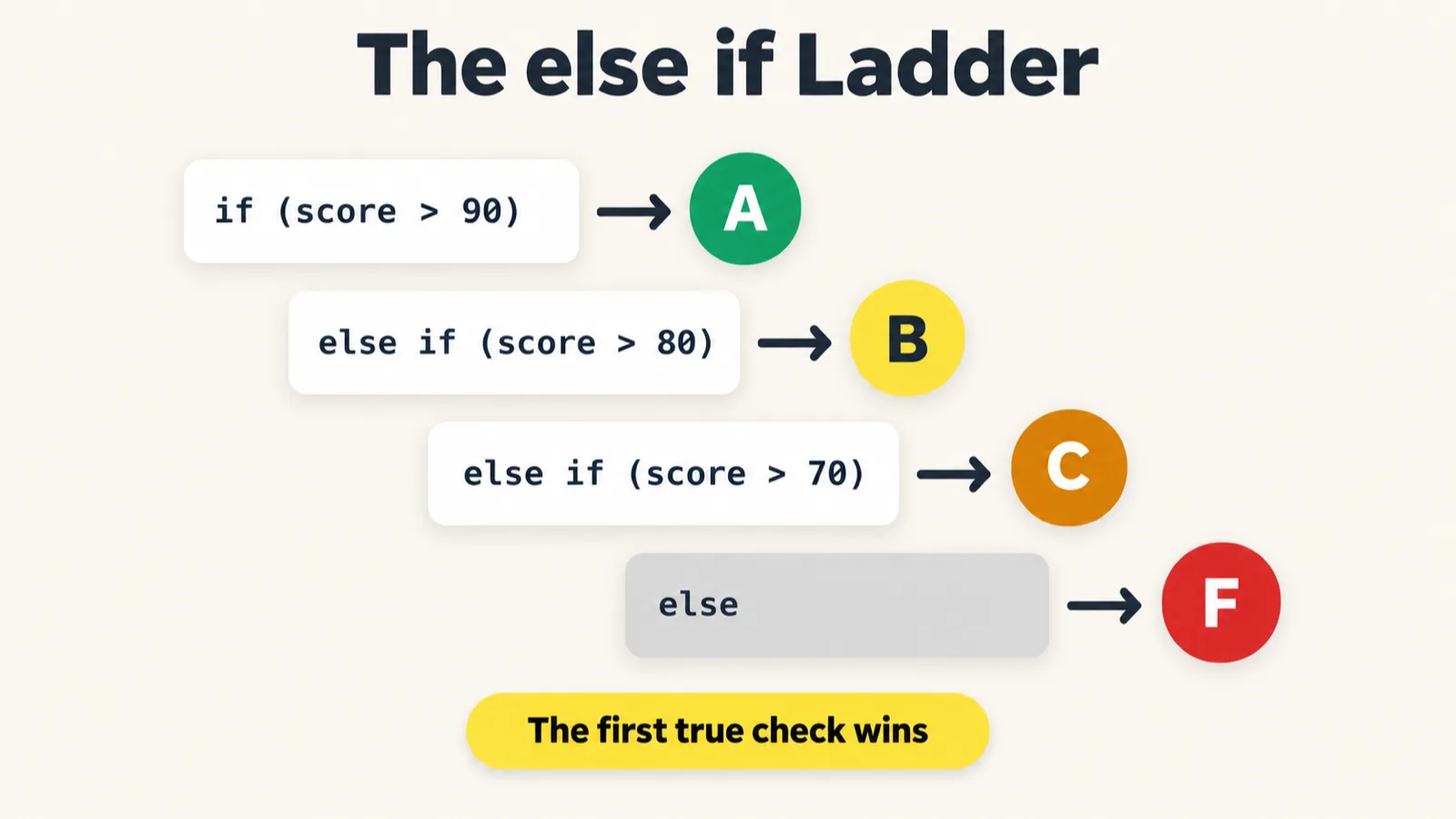
The else-if ladder: the grade calculator
A problem from the batch's coding platform, and an interview question too. The problem statement, from the class notes:
Write a JavaScript program that accepts a student's exam score and determines the corresponding grade using conditional statements (if, else if, and else). The score must be between 0 and 100 (inclusive).
| Score range | Grade | Performance |
|---|---|---|
| 91 to 100 | A | Excellent |
| 81 to 90 | B | Very Good |
| 71 to 80 | C | Good |
| 61 to 70 | D | Average |
| 50 to 60 | E | Needs Improvement |
| 0 to 49 | F | Fail |
The requirements: print the grade, display "Invalid Score" for anything below 0 or above 100, and handle the boundary values correctly: 0, 49, 50, 60, 70, 80, 90 and 100. The samples give the exact output, such as Input: 95 giving Grade A - Excellent, and Input: 105 giving Invalid Score.
The class's solution, the code part of the file (its opening comments repeat the problem statement):
let score = 95;
// user input...
// score will be int

if (score > 100 || score < 0) {
    console.log("Invalid score");
} else {
    // Score valid

    if (score > 90) {
        console.log(" Grade A - Excellent");
    }
    else if (score > 80 && score <= 90) {
        console.log("Grade B - Very Good");
    }
    else if (score > 70 && score <= 80) {
        console.log("Grade C - Good");
    }
    else if (score > 60 && score <= 70) {
        console.log("Grade D - Average");
    }
    else if (score > 50 && score <= 60) {
        console.log("Grade E - Needs Improvement");
    }
    else {
        console.log("Grade F - Fail");
    }
}
Grade A - Excellent
How it was built, one decision at a time:
- The ladder.
if, thenelse iffor each band, thenelsefor whatever is left. The first condition that is true wins, and the rest are skipped. - Edges inside each band. "If it is exactly 90, do you get A or B?" B, so B is
score > 80 && score <= 90, with the=on 90, and A isscore > 90. - The invalid check comes first. At first a score of -1 printed "Fail", because the
elsecaught it. Hence the check at the top, joined with OR (||), not AND: a score cannot be above 100 and below 0 at once. Only when the score is valid does the ladder run. - What is out of scope. Decimals, letters and text such as "Pramod" were not tested, because the requirement says the score is a whole number from 0 to 100. Negative tests are written for what is in scope. Checking that input is a number at all comes later.
The requirements list the boundary values to test. Run the pushed code at each of them:
| Score | The problem statement expects | The pushed code prints | |
|---|---|---|---|
| -1 | "Invalid Score" |
"Invalid score" |
✗ text |
| 0 | "Grade F - Fail" |
"Grade F - Fail" |
✓ |
| 49 | "Grade F - Fail" |
"Grade F - Fail" |
✓ |
| 50 | "Grade E - Needs Improvement" |
"Grade F - Fail" |
✗ grade |
| 51 | "Grade E - Needs Improvement" |
"Grade E - Needs Improvement" |
✓ |
| 60 | "Grade E - Needs Improvement" |
"Grade E - Needs Improvement" |
✓ |
| 61 | "Grade D - Average" |
"Grade D - Average" |
✓ |
| 70 | "Grade D - Average" |
"Grade D - Average" |
✓ |
| 71 | "Grade C - Good" |
"Grade C - Good" |
✓ |
| 80 | "Grade C - Good" |
"Grade C - Good" |
✓ |
| 81 | "Grade B - Very Good" |
"Grade B - Very Good" |
✓ |
| 90 | "Grade B - Very Good" |
"Grade B - Very Good" |
✓ |
| 91 | "Grade A - Excellent" |
" Grade A - Excellent" |
✗ text |
| 100 | "Grade A - Excellent" |
" Grade A - Excellent" |
✗ text |
| 101 | "Invalid Score" |
"Invalid score" |
✗ text |
One logic bug and two text mismatches. At 50 the problem statement says E, but score > 50 && score <= 60 is false for 50, so it falls through to the else and prints Fail. The repo's README flags it too, and the fix reached the repo about 20 minutes after class, so a fresh clone has score >= 50. The other two are exact-text slips, and they are still in the repo: " Grade A - Excellent" has a leading space, and "Invalid score" has a small s where the statement says Invalid Score. The grade is right, but a judge that compares output text exactly fails both. The version below has all three one-line fixes:
let score = 95;
// user input...
// score will be int

if (score > 100 || score < 0) {
    console.log("Invalid Score");
} else {
    // Score valid

    if (score > 90) {
        console.log("Grade A - Excellent");
    }
    else if (score > 80 && score <= 90) {
        console.log("Grade B - Very Good");
    }
    else if (score > 70 && score <= 80) {
        console.log("Grade C - Good");
    }
    else if (score > 60 && score <= 70) {
        console.log("Grade D - Average");
    }
    else if (score >= 50 && score <= 60) {
        console.log("Grade E - Needs Improvement");
    }
    else {
        console.log("Grade F - Fail");
    }
}
| Score | Expected | The fixed code prints | |
|---|---|---|---|
| -1 | "Invalid Score" |
"Invalid Score" |
✓ |
| 0 | "Grade F - Fail" |
"Grade F - Fail" |
✓ |
| 49 | "Grade F - Fail" |
"Grade F - Fail" |
✓ |
| 50 | "Grade E - Needs Improvement" |
"Grade E - Needs Improvement" |
✓ |
| 51 | "Grade E - Needs Improvement" |
"Grade E - Needs Improvement" |
✓ |
| 60 | "Grade E - Needs Improvement" |
"Grade E - Needs Improvement" |
✓ |
| 61 | "Grade D - Average" |
"Grade D - Average" |
✓ |
| 70 | "Grade D - Average" |
"Grade D - Average" |
✓ |
| 71 | "Grade C - Good" |
"Grade C - Good" |
✓ |
| 80 | "Grade C - Good" |
"Grade C - Good" |
✓ |
| 81 | "Grade B - Very Good" |
"Grade B - Very Good" |
✓ |
| 90 | "Grade B - Very Good" |
"Grade B - Very Good" |
✓ |
| 91 | "Grade A - Excellent" |
"Grade A - Excellent" |
✓ |
| 100 | "Grade A - Excellent" |
"Grade A - Excellent" |
✓ |
| 101 | "Invalid Score" |
"Invalid Score" |
✓ |
What goes inside the brackets
From the class's cheat sheet for if:
- A condition can use the comparison operators, the logical ones (
&&,||) and NOT (!), and combinations of them, such asuser === "TTA" && isActive === true. - The common mistake: using
==where you mean===. From the class notes, the interview question: what is the difference betweenif (x == 5)andif (x === 5)in testing? Always use===.==converts types first, so"5" == 5istrue, while"5" === 5isfalse. In QA, strict equality catches type bugs. - Real uses ahead: checking a username and password, a page theme, and conditions inside Playwright tests.
The switch statement
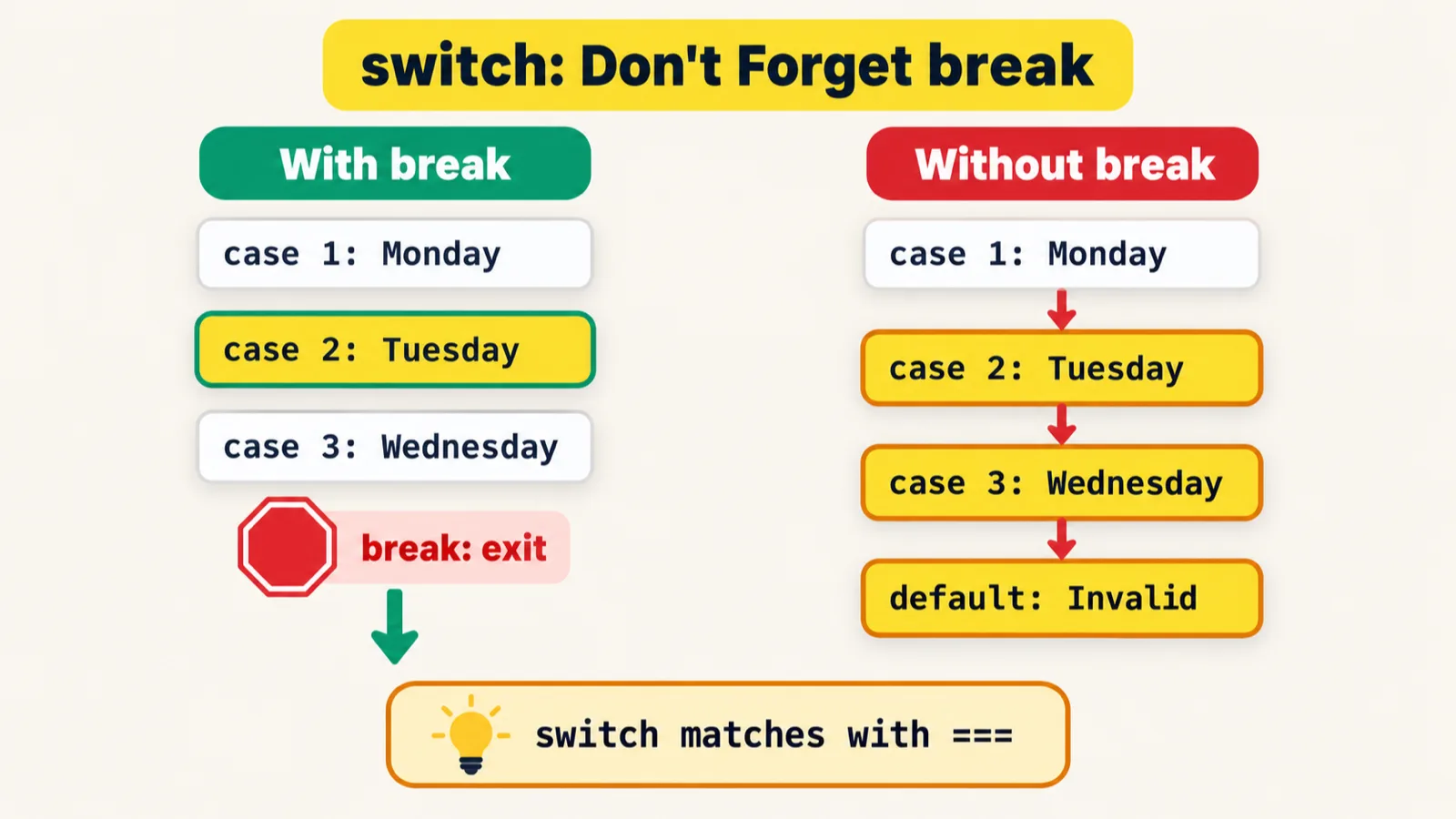
From the class notes: switch evaluates an expression once and compares it against several case values. When a case matches, its code runs. It is cleaner than a long else-if chain when you are comparing a single value against many options, and it uses strict comparison (===).
switch (expression) {
    case value1:
        // code block
        break;       // IMPORTANT: stops fall-through
    case value2:
        // code block
        break;
    default:
        // runs if no case matches (optional)
}
The first file of chapter 07, with day 1 for Monday, 2 for Tuesday and so on:
let day = 2;
//. day 1 - mon, 2 tue...

switch(day){
    case 1:
        console.log("Monday");
        break;
    case 2:
        console.log('Tue');
        let a = 10;
        let b = 30;
        console.log(a + b);
        break;
    case 3:
        console.log('Wed');
        break;
    case 4:
        console.log('Thur');
        break;
    case 5:
        console.log('Fri');
        break;
    case 6:
        console.log('Sat');
        break;
    case 7:
        console.log('Sun');
        break;
    default:
        console.log("No idea which day it is");
}
Tue
40
day is 2, so case 2 runs, and a case can hold several statements: it prints Tue, adds a and b, prints 40, and break leaves the switch. A tip from class: select a few lines and run just the selection, which runs only that part of the file.
Eight switch questions
1. No breaks at all.
let day = 2;
switch (day) {
    case 0:
        console.log("Sunday - Rest Day");
    case 1:
        console.log("Monday - Sprint Planning");
    case 2:
        console.log("Tuesday - Development");
    case 3:
        console.log("Wednesday - Code Review");
    case 4:
        console.log("Thursday - Testing");
    case 5:
        console.log("Friday - Deployment & Retro");
    case 6:
        console.log("Saturday - Rest Day");
    default:
        console.log("Invalid day value");
}
Tuesday - Development
Wednesday - Code Review
Thursday - Testing
Friday - Deployment & Retro
Saturday - Rest Day
Invalid day value
The match is case 2, but with no break the code falls through and runs every case below it, default included. From the class notes: "This is the #1 switch bug." Always use break, unless falling through is what you want, and then say so in a // fall-through comment.
2. No match.
let day = 10;
switch (day) {
    case 0:
        console.log("Sunday - Rest Day");
        break;
    case 1:
        console.log("Monday - Sprint Planning");
        break;
    case 2:
        console.log("Tuesday - Development");
        break;
    case 3:
        console.log("Wednesday - Code Review")
        break;
    case 4:
        console.log("Thursday - Testing");
        break;
    case 5:
        console.log("Friday - Deployment & Retro");
        break;
    case 6:
        console.log("Saturday - Rest Day");
        break;
    default:
        console.log("Invalid day value");
}
Invalid day value
Nothing matches 10, so default runs.
3. A real one, from API testing.
let responseCode = 404;
switch (responseCode) {
    case 200:
        console.log("200 Ok");
        break;
    case 404:
        console.log("404 Not found!");
        break;
    default:
        console.log("Not status code match");
}
404 Not found!
4. Grouped cases. Several values that need the same handling can share one block:
let browser = "Brave";

switch (browser) {
    case "Chrome":
    case "Edge":
    case "Brave":
    case "Opera":
        console.log("Chromium Project!");
        break;
    case "Firefox":
        console.log("Mozilla Project!");
        break;
    case "Safari":
        console.log("Apple browser - uses JavaScriptCore engine");
        break;
    default:
        console.log("Unknown browser - manual testing needed");

}
Chromium Project!
"Brave" matches the third label and falls through the empty cases to the shared console.log. The grouping is real: Chrome, Edge, Brave and Opera are all built from Chromium, the open-source browser project, while Firefox comes from Mozilla and Safari from Apple.
5. A tricky one.
let fruit = "banana";
switch (fruit) {
    case "apple":
        console.log("Apple selected");
    case "banana":
        console.log("Banana selected");
    case "cherry":
        console.log("Cherry selected");
    case "date":
        console.log("Date selected");
    default:
        console.log("Default reached");
}
Banana selected
Cherry selected
Date selected
Default reached
"banana" matches, and with no break after it, cherry, date and the default all run too.
6. switch (true). Ranges in a switch:
let testScore = 85;
switch (true) {
    case (testScore >= 95):
        console.log("Outstanding - Top performer");
        break;
    case (testScore >= 85):
        console.log("Excellent - Above expectations");
        break;
    case (testScore >= 70):
        console.log("Good - Meets expectations");
        break;
    case (testScore >= 50):
        console.log("Needs Improvement");
        break;
    default:
        console.log("Unsatisfactory - Requires training");
}
Excellent - Above expectations
switch (true) turns each case into a condition, checked top to bottom; the first one that is exactly true runs, and break stops the rest, as in an else-if ladder.7. The same case twice.
let x = 10;
switch (x) {
    case 10:
        let b1 = 1;
        console.log(b1);
        break;
    case 10:
        let b2 = 2;
        console.log(b2);
        break;
    default:
        console.log("d");

}
1
The first case 10 wins, and the second can never run. JavaScript allows the duplicate without complaint; in Java, the same code is a compile error. The repo's README points out why the variables are named b1 and b2: all the cases share one scope, so let b in both would stop the file with SyntaxError: Identifier 'b' has already been declared.
8. The one that comes up most.
let status = 0;
console.log(typeof status);
switch (status) { // // === Strict, value and data type both of them shoul be same.

    case false:
        console.log("false matched");
        break;
    case 0:
        console.log("0 matched");
        break;
}
number
0 matched
status is the number 0. With loose equality, 0 == false is true, but switch compares with ===, and 0 is not strictly equal to false. So case false is skipped, and case 0 matches.
switch or if/else?
The rule from the class's cheat sheet:
- switch when one value is compared against many exact values: a status code, a browser name, a day number.
- if/else when the logic is complex, or conditions are ranges or combinations.
And its common mistakes: forgetting break; using switch for complex logic; assuming switch matches loosely, when it uses ===; leaving out default; and repeating code that grouped cases could share.
Four ways to read user input
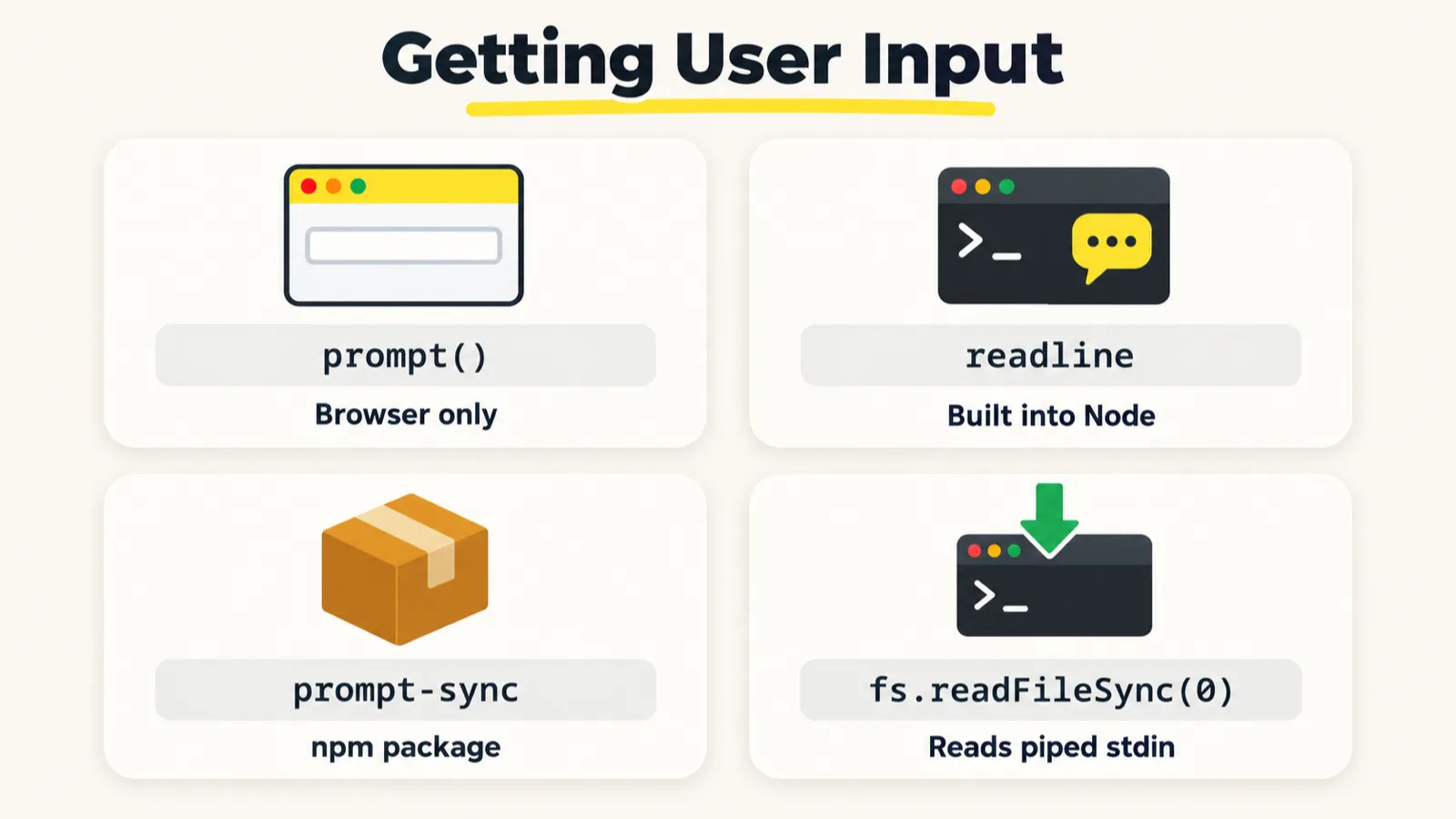
"How do I take input from the user?" was the question all class. The first thing to know: JavaScript was never designed to read input from a terminal. It was made for the browser. The ways that exist, from the class notes:
prompt()readline, a Node.js moduleprompt-sync, a Node.js packagefs.readFileSync(), from Node.js
prompt(), browser only.
let num = prompt("Enter a number:");
num = Number(num);  // convert string to number

if (num % 2 === 0) {
    console.log(num + " is Even");
} else {
    console.log(num + " is Odd");
}
In the browser console it opens a dialog; 34 printed "34 is Even". Run the same file with Node and it stops at once:
08_chapter_UserInput/59_UI.js:1
let num = prompt("Enter a number:");
          ^

ReferenceError: prompt is not defined
prompt() belongs to the browser. Node.js runs JavaScript outside the browser, so the function does not exist there, and Node offers its own modules instead.
readline, built into Node.
const readline = require('readline');

const rl = readline.createInterface({
    input: process.stdin,
    output: process.stdout
});

rl.question("Enter a number: ", (input) => {
       let num = Number(input);

    if (num % 2 === 0) {
        console.log(num + " is Even");
    } else {
        console.log(num + " is Odd");
    }

    rl.close();

});
Enter a number: 34
34 is Even
It works, but the answer arrives inside a callback and you must close the interface yourself. The instructor's verdict: it looks difficult, and it is not the one the batch will use.
prompt-sync, the easy one. It is a package, so the folder first has to become a Node.js project:
npm init
npm install prompt-sync
npm init asks a few questions and creates package.json. npm install then adds prompt-sync to it. The file:
const prompt = require("prompt-sync")();
let num = Number(prompt("Enter a number"));
console.log(num);
Run with node, typing 90 and Enter, the terminal shows:
Enter a number90
90
The first version in class kept failing, and a learner spotted why: the () after require("prompt-sync") was missing. The package exports a function that builds the prompt, so it has to be called. Leave the () off and the file fails with TypeError: Cannot create property 'autocomplete' on string 'Enter a number'. Two more things worth knowing: the prompt text has no trailing space, so what you type runs straight on from it, and prompt-sync reads from the terminal itself, so it needs a real terminal window.
fs.readFileSync(0), how the coding platform does it.
console.log("Enter the number!");
const data = require('fs').readFileSync(0, 'utf8');
console.log("Hi", data);

// In the terminal:
// Type 15
// Press Enter
// Press Ctrl+D
Type 15, press Enter, then press Ctrl+D:
Enter the number!
15
Hi 15
0 means standard input, and readFileSync reads it to the end. Typing by hand, the end only comes when you press Ctrl+D. This is how the batch's coding platform reads input.
prompt() is a browser feature, so Node needs one of the other three. In Playwright tests you use none of them: the data comes from files.Which one to use? For Playwright, none. A test never stops to ask for input. Its data comes from files: CSV, JSON or Excel. If an interviewer asks for user input in JavaScript, use prompt-sync or fs.
Tasks and announcements
- Coding exercises. Five on the coding platform, all in JavaScript, not Java: Hello World, reading user input, printing a table, FizzBuzz, and the grade calculator. Meeti posts them with a screenshot. Leap year and a triangle classifier come later.
- The increment and decrement task from the last class gets one more day.
- Coming up: let, var and const, hoisting and the temporal dead zone (TDZ). An extra class on AI is being planned.
- The push. The class's code went up with a single command,
/go, which updates the README and pushes. - Doubts go in today's doubt thread; the instructor answers them there after class.
Task, five exercises. Solve Hello World, user input, the table, FizzBuzz and the grade calculator on the coding platform, in JavaScript. For the grade calculator, test every boundary value in the problem statement before you submit.