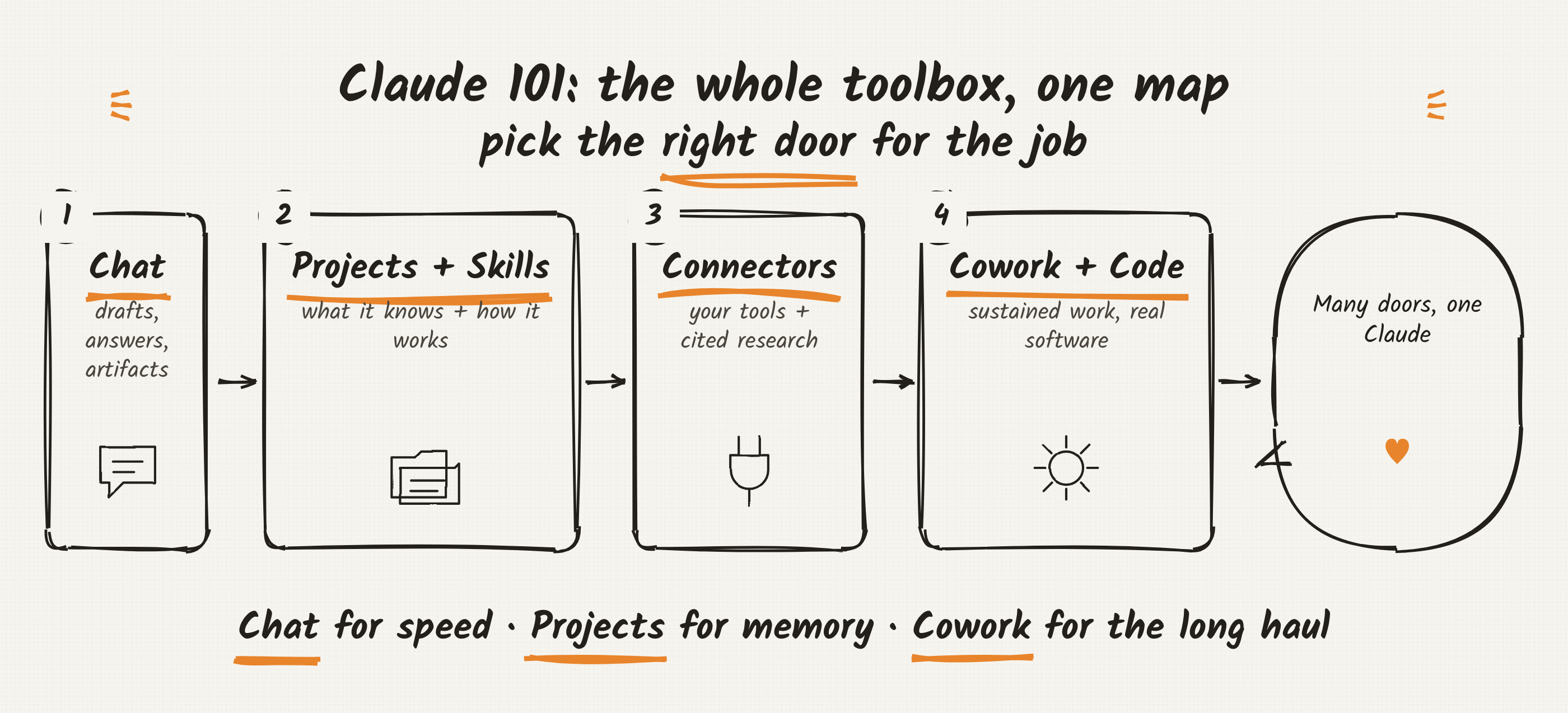
What is Claude?
Core Identity
Claude is an AI assistant built on Constitutional AI, a training approach that aligns Claude with human values and makes it operate transparently. At its core, Claude is guided to be helpful, harmless, and honest.
Claude is not just a chatbot: think of it as a thought partner who can tackle complex problems, not just answer simple questions.
Key Characteristics
- Steerable & collaborative, takes direction on personality, tone, and behavior
- Less likely to produce harmful outputs than other models
- Easier to converse with, gets to your desired output with less effort
- Available everywhere: Web, desktop, mobile; syncs across all devices when signed in
What Claude Excels At
| Capability | Description |
|---|---|
| Writing & Content Creation | Social posts, emails, reports; adapts tone and voice on request |
| Research & Analysis | Explores research angles, compiles findings, analyzes data |
| Coding Assistance | Write, debug, and explain code across many languages |
| Problem-Solving & Reasoning | Complex cognitive tasks, math, strategic analysis |
| Learning New Things | Adapts to your learning style and pace |
Context Window
Claude can ingest 200K+ tokens (~500+ pages of text) in a single conversation, no need to re-upload files repeatedly.
Plan Availability
Claude is available across Free, Pro, Max, Team, and Enterprise plans (some advanced features are plan-specific).
Writing Effective Prompts
The Golden Rule
Speak to Claude like a coworker, naturally, concisely, and conversationally.
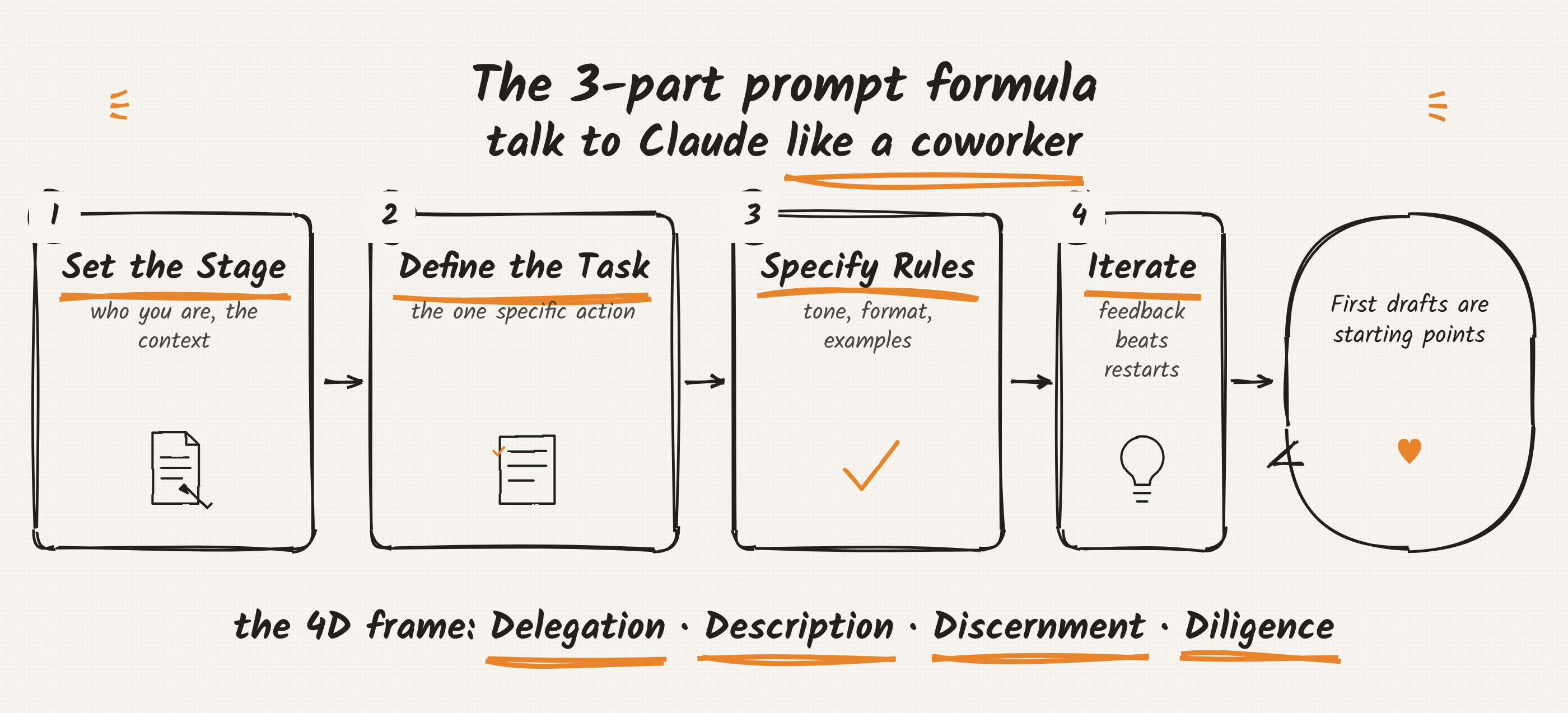
The 3-Part Prompt Framework
1. Set the Stage
- Who are you? What's your role?
- What's the objective or context?
- What background does Claude need?
2. Define the Task
- What specific action do you want Claude to take?
- Write? Analyze? Build? Research?
3. Specify Rules
- What tone or style?
- What format or structure?
- Any examples to follow?
Example Prompt (all 3 elements)
"I'm a backend developer at a fintech startup building a transaction monitoring service. We're evaluating whether to go serverless (AWS Lambda) or containerized (ECS/Fargate) for our new fraud detection microservice, which processes around 500 events per second at peak. Can you compare both approaches across cost, scalability, cold start latency, and operational overhead? Structure it as a comparison table followed by a recommendation with reasoning."
- Stage: Backend dev, fintech startup, fraud detection microservice, ~500 events/sec peak load
- Task: Compare AWS Lambda vs ECS/Fargate across four specific dimensions
- Rules: Comparison table + written recommendation, technical but concise tone
Adding Context to Claude
Uploads are a shortcut: instead of explaining everything, just attach the file. Claude can analyze:
- Text content in PDF, DOCX, CSV, TXT
- Visual elements (charts, graphics) in PNG, JPEG
Ways to give Claude context:
- Upload a document → ask Claude to summarize key points
- Share an image → ask Claude to describe or analyze it
- Attach a spreadsheet → ask Claude to find trends
- Upload code → ask Claude to explain it or find bugs
Tip: Add your personal preferences in Settings so Claude applies them to every response automatically.
Iterating on Responses
First drafts are starting points, not final answers. You have options when Claude's response isn't right:
- Ask follow-up questions, "Can you expand on the second point?"
- Give feedback, "This is good, but the tone is too formal. Make it more conversational."
- Redirect, "Actually, I was asking about X, not Y. Let me clarify..."
- Restart: Open a new chat with a clearer prompt if the conversation went off the rails.
Common Challenges & Fixes
| Challenge | What's Happening | Fix |
|---|---|---|
| Response is too generic | Not enough context provided | Add details about your audience, role, or constraints |
| Response is too long or short | Claude is guessing at length | Be explicit: "Give me a two-paragraph summary" or "Keep this under 100 words" |
| Wrong format | Claude understood what but not how | Show, don't just tell. Provide an example or describe the structure explicitly |
| Confident but incorrect info | Claude occasionally generates plausible but wrong info | Verify key facts independently; ask Claude to cite sources; enable web search |
| Wrong tone | Claude defaults to helpful and professional | Describe tone plainly: "More conversational" or "More authoritative and formal" |
The Iteration Mindset
Effective Claude users:
- Treat first drafts as starting points, review, identify issues, refine
- Give specific feedback, "Cut the first two paragraphs and make the conclusion more action-oriented" beats "Make it shorter"
- Know when to start fresh, sometimes a new chat with a clearer prompt is faster than course-correcting
Evaluating Claude for Your Workflows (Evals)
A simple 4-step approach to know if Claude is good at a specific task:
- Gather examples, collect 5–10 examples of a task you do regularly
- Create test prompts, write prompts that would generate similar outputs
- Compare outputs, run your prompts and compare Claude's responses to your examples:
- Does Claude capture the key information?
- Is the tone and style appropriate?
- What's missing?
- Refine your approach, adjust prompts, add examples, identify where human review is essential
AI Fluency: The 4D Framework
Developed by Prof. Rick Dakan (Ringling College of Art and Design) and Prof. Joseph Feller (University College Cork).
| Competency | What It Means |
|---|---|
| Delegation | Deciding what work goes to humans vs. AI; understanding your goals and AI capabilities |
| Description | Communicating effectively with AI; clearly defining outputs, guiding processes, specifying behaviors |
| Discernment | Critically evaluating AI outputs; assessing quality, accuracy, and appropriateness |
| Diligence | Using AI responsibly and ethically; maintaining transparency and accountability |
The 3-part prompt framework (Stage, Task, Rules) is rooted in Description. Troubleshooting techniques draw on Discernment and Diligence.
Navigating the Claude Desktop App
The desktop app gives three distinct modes of working with Claude:
Chat
Best for: Quick questions, brainstorming, drafting, iterative problem-solving.
Desktop-only extras:
- Quick entry: Double-tap
Option(Mac) to pull Claude up over any app in a compact overlay - Screenshots & window sharing: Capture exactly what you're looking at (Mac)
- Dictation: Talk through problems instead of typing (Mac)
- Desktop connectors: Connect local tools and services
Cowork
Best for: Complex, sustained work (research, analysis, finished documents and deliverables).
Claude can multitask, tackling different parts of a project simultaneously.
Key features:
- Folder access: Give Claude a folder; it reads what's there, determines relevance, saves finished work back
- Scheduled tasks: Recurring work on a schedule (daily briefings, weekly roundups, inbox triage)
- Browser use: Connect Claude in Chrome to let Claude navigate websites and pull information directly
- Plugins: Add capabilities: live financial data, internal knowledge base search, compliance frameworks
- Protected environment: Runs in a contained space; only accesses folders you share
Available to Pro, Max, Team, and Enterprise users (research preview).
Code
Best for: Building software (writing, testing, running, and deploying code).
Environment options:
- Local: Claude works directly with a folder on your computer, full file system and terminal access
- Remote: Claude works in a cloud environment connected to a GitHub repo; sessions continue even if you close the app
Interaction modes:
- Ask: Claude proposes every change and waits for your approval
- Code: Claude applies file changes automatically but checks before running terminal commands
- Plan: Claude outlines its full approach before touching anything
Rolling out to Pro, Max, Team, and Enterprise users.
Side-by-Side Comparison
| Chat | Cowork | Code | |
|---|---|---|---|
| Optimized for | Quick exchanges, drafting, iterative Q&A | Complex research, analysis, finished deliverables | Software development |
| Key features | Quick entry, dictation | Folder access, scheduled tasks, subagents, plugins | Ask/Code/Plan modes, visual diffs, git integration |
| Environments | Web, desktop, mobile | Contained workspace (folders you share) | Local or cloud/GitHub |
Projects
What Are Projects?
Self-contained workspaces with their own memory, chat histories, knowledge bases, and custom instructions. Dedicated environments for specific, ongoing work streams.
When to Use Projects
Create a project when you have:
- Reference materials you'll reuse repeatedly
- Consistent requirements for how Claude should respond
- Team collaboration needs where multiple people need the same foundation
Setting Up a Project (3 Steps)
Step 1: Create the Project
- Go to claude.ai/projects or hover over the sidebar → Projects
- Click + New Project
- Give it a descriptive name (e.g., "Q4 Marketing Campaign")
- Add a description (helps you and teammates; Claude doesn't see this directly)
- Set visibility: private or shared with org (Team/Enterprise)
Step 2: Write Project Instructions
Instructions tell Claude how to behave across all conversations in the project.
Good instructions include:
- Context, "This project is for creating marketing content for our B2B software product."
- Process, "First consider a blog structure that will entice this audience, then write the draft."
- Tone/style, "Use a professional but conversational tone. Avoid jargon when possible."
- Requirements, "Always include a call-to-action at the end of marketing copy."
Step 3: Build the Knowledge Base
Upload files Claude should reference: PDF, DOCX, CSV, TXT, HTML, and more. Also connect Google Drive directly.
What to upload:
- Brand guidelines, style guides, templates
- Research reports, meeting notes, requirements docs
- Examples of work you want Claude to emulate
- Technical documentation or specifications
Tip: Name files descriptively. Claude uses file names to retrieve the right information.
Q4-Brand-Guidelines.pdfbeatsdocument1.pdf.
How Large Knowledge Bases Work: RAG
When your project knowledge approaches the context limit, Claude automatically enables Retrieval Augmented Generation (RAG), intelligently searching and retrieving only the most relevant information, expanding capacity by up to 10x while maintaining response quality.
Collaboration (Team & Enterprise)
Permission levels when sharing:
- Can view: Read-only access with the ability to chat
- Can edit: Full collaboration: modify instructions, update knowledge, manage members
- Owner: Controls everything, including who sees the project
To share: Open project → "Share project" → add members by name/email or share with everyone at your org.
Project Ideas
| Project | What to Upload |
|---|---|
| Q4 Product Launch | Product specs, competitive analysis, messaging notes |
| Research Support | Competitive reviews, user research data, customer feedback |
| Client Account Hub | Brand guidelines, past deliverables, communication history |
| Event Planning | Venue contracts, speaker bios, attendee data |
| Job Description Generator | Past JDs, team charters, headcount request docs |
Best Practices
- Start focused, then expand
- Keep your knowledge base current (outdated docs → outdated responses)
- Write clear, specific instructions
- Group related documents together
- Reference documents by name in prompts: "Based on our Q3 report, what were the top customer concerns?"
Artifacts
What Are Artifacts?
Standalone, interactive outputs that Claude creates in a dedicated window alongside your conversation, rendered and ready to use, not buried in chat.
When Does Claude Create an Artifact?
Automatically when content:
- Is significant and self-contained (typically 15+ lines)
- Is something you're likely to edit, iterate on, or reuse
- Represents complex content that stands alone
- Is something you'll want to reference or use later
If Claude doesn't create one automatically: "Create this as an artifact."
Artifact Types
| Type | Best For |
|---|---|
| Documents (Markdown, plain text) | Meeting notes, reports, blog posts, project plans |
| Code snippets | Working code in Python, JavaScript, C++, and more |
| HTML pages | Landing pages, forms, interactive demos, prototypes |
| SVG images | Logos, icons, illustrations, visual elements |
| Mermaid diagrams | Flowcharts, sequence diagrams, Gantt charts, org charts |
| React components | Calculators, dashboards, games, data visualizations, with real logic |
What You Can Do with Artifacts
- View, toggle between preview and underlying code
- Copy, grab content for use elsewhere
- Download, save as a file to your computer
- Share within org (Team/Enterprise), stays behind team authentication
- Publish publicly (Free, Pro, Max), anyone with the link can view and interact; others can "remix" (open in their own Claude conversation to modify)
You can unpublish at any time. Your chat always remains private even when an artifact is published.
Tips for Better Artifacts
- Be specific, "Build a monthly budget tracker where I can input expenses by category, see a pie chart breakdown, and get a warning when I'm over budget" beats "Build a budget tracker"
- Describe the end user, "This flowchart is for new employees" vs. "for the engineering team" produces different results
- Iterate incrementally, add one feature or change at a time
- Request explicitly when needed, "Please create that as an artifact"
Skills
What Are Skills?
Folders of instructions, scripts, and resources that Claude loads dynamically to improve performance on specialized, repeatable tasks. Think of them as expertise packages, they teach Claude how to complete specific tasks in a repeatable way.
Types of Skills
| Type | Who Creates It | Examples |
|---|---|---|
| Anthropic Skills | Anthropic | Excel, Word, PowerPoint, PDF file creation |
| Custom Skills | You or your organization | Company brand guidelines, meeting note templates, data analysis workflows |
Anthropic Skills are available to all paid users and invoked automatically once enabled, no per-task setup needed.
Enabling Skills
- Go to Settings → Capabilities
- Ensure Code execution and file creation is toggled on (Skills require this)
- Scroll to the Skills section
- Toggle individual skills on or off
Enterprise: Owners must enable both Code execution and Skills in Admin settings first. Team: Enabled by default at the org level.
Using Skills
You don't need to think about them: Claude selects the right skill automatically. Example triggers:
- "Create an Excel spreadsheet tracking monthly expenses with formulas for totals"
- "Turn this meeting notes document into a PowerPoint presentation"
- "Generate a PDF report summarizing this data"
Output: a downloadable file you can save to your computer or Google Drive.
Creating a Custom Skill (via conversation)
- Start a new chat and tell Claude what you want: "I want to create a skill for writing quarterly business reviews"
- Answer Claude's interview questions about your workflow
- Upload reference materials if you have them (templates, style guides, brand assets)
- Claude generates a downloadable ZIP file with your skill
- Go to Settings → Capabilities → Skills → Upload skill
Skills vs. Projects
| Projects | Skills | |
|---|---|---|
| Purpose | Store knowledge Claude references | Define processes Claude executes |
| Best for | Long-term context, reference materials, team collaboration | Repeatable workflows, multi-step tasks, consistent methodology |
| Example | Customer hub, research library, feedback generator | Brand guidelines application, blog drafting, PDF creation |
| Persistence | Knowledge available across all chats in the project | Instructions applied when the skill is invoked |
They complement each other: a Skill can reference knowledge stored in a Project. The project provides the what (information); the skill provides the how (process).
Connectors & MCP
What Are Connectors?
Tools that transform Claude from an assistant into an informed collaborator, giving Claude access to the same tools, data, and context you use every day.
Connectors can:
- Read, search files, retrieve documents, analyze data
- Act, create content, update records, execute tasks across your connected apps
The Model Context Protocol (MCP)
MCP is the standard that powers connectors: think of it like USB-C for AI. A universal interface that allows Claude to connect to many different applications consistently. Developers can build connectors for any tool.
Two Types of Connectors
| Type | Where It Runs | Examples |
|---|---|---|
| Web connectors | Cloud services | Google Drive, Notion, Slack, Asana, Gmail, Linear, Stripe |
| Desktop extensions | Local, via Claude Desktop app | Local file access, browser control, Figma |
Setting Up a Web Connector
- Go to claude.ai/directory or click "Search and tools" → "Add connectors"
- Click Connect
- Authenticate, sign in with your existing credentials
- Grant permissions, review what Claude is requesting
- Test, "Can you access my [tool name]?"
Setting Up a Desktop Extension
- Download and install the Claude Desktop app
- Go to Settings → Extensions
- Browse and click Install
- Follow setup steps for that extension
Practical Use Cases
Project Management (Asana, Linear, Jira)
- "What are my highest priority tasks due this week?"
- "Create a new task for reviewing the Q4 budget proposal"
Communication (Slack, Gmail)
- "Find the email thread where we discussed the vendor contract"
- "Draft a reply to the latest message in the #marketing channel"
Documentation (Notion, Google Drive, Confluence)
- "Search our documentation for our brand voice guidelines"
- "Summarize the meeting notes from last week's product review"
Business Tools (Stripe, Salesforce)
- "Show me revenue trends for the past quarter"
- "What's the status of the Acme Corp opportunity?"
Security Notes
- Scoped access, permissions are specific to what the connector needs; toggle individual permissions on/off per app
- Claude sees what you see, connecting your work email doesn't give Claude access to your CEO's inbox
- Revocable at any time, disconnect through Claude's settings or the third-party service's security settings
Enterprise Search
What Is Enterprise Search?
A dedicated "Ask {Your Org Name}" option in your sidebar, specifically designed for finding and synthesizing knowledge buried across your company's tools and data sources.
Unlike regular chats with connectors, Enterprise Search uses custom instructions configured by the Anthropic team and is optimized for information gathering.
What to Ask
Getting up to speed:
- "What happened yesterday while I was out?"
- "Summarize key updates across the business from the last week"
- "What are the current blockers on the Platform project?"
Policy & process:
- "What is our company's remote work policy?"
- "How do I submit an expense report?"
Research & analysis:
- "What are the main reasons customers cite for choosing competitors?"
- "Summarize discussions about the Q4 product roadmap"
Onboarding:
- "How does our authentication system work?"
- "Who should I talk to about learning the billing system?"
Setup Process
For Admins (Owners):
- Click "Ask Your Org" in the left sidebar
- Click "Set up for your org"
- Connect your org's tools; required: Documents (Google Drive or SharePoint) and Chat (Slack or Teams); optional: email
- Customize the project name (appears as "Ask [Name]" in everyone's sidebar)
- Add a description → "Finish set up"
For Users:
- Click the "Ask {Org Name}" project starred in your sidebar
- Follow the guided onboarding flow
- Authenticate with each service (Slack, Google, Microsoft 365, etc.)
- Start asking
The more connectors enabled, the more comprehensive your search results.
Is It Safe?
Yes. Enterprise Search only shows what you already have permission to access in the original connected tool. Conversations remain private and your connected data isn't indexed or stored separately.
Research Mode
What Is Research?
This advanced feature enables Claude to operate as a systematic investigator. Rather than executing a solitary search, Claude undertakes multiple searches that are cumulative in nature, exploring diverse angles automatically.
Timeline: The majority of reports are completed within a time frame of 5–15 minutes. Complex investigations may take up to 45 minutes.
Extended thinking is automatically enabled with Research, Claude plans its approach thoughtfully before gathering information.
When to Use What
| Use This | When You Need |
|---|---|
| Research | Comprehensive reports from multiple sources, in-depth analysis, comparative evaluations, cited findings |
| Web Search | A quick specific fact, one or two sources needed, speed over comprehensiveness |
| Extended Thinking | Deep reasoning on a complex problem without external data (math, debugging, logical analysis) |
How Research Works (4 Steps)
- Plan: Extended thinking activates; Claude breaks down your request and plans the investigation
- Search: Multiple searches that build on each other; Claude pursues promising leads and fills gaps
- Synthesize: Compiles everything from web + connected integrations (Gmail, Calendar, Drive) into a comprehensive report
- Cite: Every claim links back to its source for easy verification
How to Enable Research
- Find the Research button on the bottom left of the chat interface
- Click to enable (button turns blue when active)
- Enter your prompt and submit
- Watch progress indicators as Claude works
Note: Web search must be enabled for Research to function.
Tips for Effective Research Prompts
- Be specific about your goals, "Analyze the electric vehicle battery market: identify key players, technology trends, and supply chain challenges" beats "Tell me about the EV market"
- Specify the structure you want, "Compare venue options including: location, meeting space, catering, and pricing"
- Include relevant constraints, budget ranges, timelines, geographic requirements
- Ask Claude to help refine your prompt before enabling Research if you're unsure how to frame the question
Combining Research with Connected Integrations
- "Summarize what's been discussed about Project X across my emails and Slack, then research industry best practices for similar initiatives"
- "Review my calendar commitments for next week and research each company I'm meeting with"
- "Find all internal documents about our pricing strategy and compare to how competitors are positioning themselves"
Use Cases by Role
General Professional
- Generate project status reports
- Analyze patterns in user feedback
- Package brand guidelines in a Skill
Sales
- Build a battle card library (competitive intelligence)
- Prepare for sales deals (prospect research, talking points)
- Create sales reports from pipeline data
Marketing
- Analyze campaign performance
- Adapt content across platforms
Finance
- Build financial models
- Draft investment memos
- Understand and extend an inherited spreadsheet
HR
- Create new hire onboarding guides
Legal
- Track discovery timelines and analyze patterns
Research
- Plan literature reviews
- Verify statistics from raw data
Claude's Extended Tools
Claude Code
An agentic coding tool that works where you work: terminal, IDE, browser, or Slack. It understands your codebase, executes commands, and handles entire development workflows through natural language.
Use Claude Code when:
- You want to build features by describing them in plain English (writes code, runs tests, creates commits)
- Debugging issues, paste error messages, Claude analyzes codebase to identify and fix problems
- Navigating an unfamiliar codebase, ask how parts work together
- Automating tedious tasks: fixing lint errors, resolving merge conflicts, writing release notes
- You prefer working in your terminal alongside your existing IDE
Claude in Slack
Brings Claude directly into Slack, available in channels, threads, or via @Claude.
Use Claude in Slack when:
- Drafting responses, summarizing threads, breaking down complex discussions without leaving Slack
- Preparing for meetings by pulling together relevant conversations and shared documents
- Onboarding to a new team, review channel history to understand ongoing projects
- Handing off coding tasks directly from a bug report, tag
@Claudeand it can spin up a Claude Code session using the surrounding Slack context
Claude for Excel
Claude in a sidebar in Microsoft Excel that reads, analyzes, modifies, and creates workbooks through conversation.
Use Claude for Excel when:
- Working with a complex multi-tab workbook to understand formulas or calculation flows
- Updating assumptions or inputs across a model while preserving formula dependencies
- Debugging errors like
#REF!,#VALUE!, or circular references - Creating new spreadsheets or populating templates with data
- Building pivot tables or charts to visualize data
Claude for Chrome
A browsing assistant that maintains context as you move between tabs and tasks.
Use Claude for Chrome when:
- Summarizing articles, research papers, or web pages while browsing
- Drafting email responses or managing your inbox
- Filling out repetitive forms
- Testing website features or navigating multi-step workflows
- Needing a browsing assistant that maintains context across tabs
Note: Currently in research preview. Recommended for low-risk tasks on trusted websites. Asks permission before high-risk actions (purchasing, sharing personal data). Financial services and adult content sites are blocked by default. Available to Claude Max subscribers only.
Complete Tool Comparison
| Tool | Best For | Where It Runs |
|---|---|---|
| Claude.ai | General tasks, research, writing, analysis, file creation | Web, desktop, mobile apps |
| Claude Code | Software development, codebase navigation, git workflows | Terminal, IDE, or browser |
| Claude in Slack | Team collaboration, meeting prep, quick contextual answers | Slack workspace |
| Claude for Excel | Spreadsheet analysis, financial modeling, formula debugging | Microsoft Excel sidebar |
| Claude for Chrome | Web research, email management, browser automation | Chrome browser sidebar |
Quick Reference Cheatsheet
Prompt Formula
[Your role + objective + context] + [Specific action] + [Tone/format/examples]
When to Use Each Feature
| If you need... | Use... |
|---|---|
| A quick answer or brainstorm | Chat |
| A file output (Excel, Word, PDF, PPT) | Skills |
| Ongoing work with persistent context | Projects |
| A standalone interactive deliverable | Artifacts |
| Data from your connected apps | Connectors |
| Org-wide knowledge search | Enterprise Search |
| Deep multi-source research | Research Mode |
| Complex sustained tasks or scheduled work | Cowork |
| Coding and development work | Code / Claude Code |
Key Settings to Configure
- Settings → Preferences, personal tone and formatting preferences
- Settings → Capabilities, enable Code execution, Skills, web search
- Settings → Extensions, install desktop extensions (Desktop app only)
- claude.ai/directory, browse and connect web connectors
Warning signs to watch for
- Claude sounds confident but gives specific facts, niche details, or recent information → verify independently
- First response isn't right → iterate, don't restart (unless fundamentally off-track)
- Claude goes off-topic → redirect explicitly: "Actually, I was asking about X, not Y"
- Need to reuse Claude for the same workflow repeatedly → create a Skill or Project
Course: Claude 101 | Source: anthropic.skilljar.com/claude-101